What Happens to Your Backup Strategy When You Leave VMware
Leaving VMware removes the API layer your backup vendor built on. Here's what breaks with VADP, CBT, SRM, and application-consistent snapshots — and what to fix before any VM migrates.

Leaving VMware doesn't just change where your VMs run. It removes the API layer your backup architecture was built on top of.
Every major enterprise backup vendor, Veeam, Rubrik, Cohesity, Commvault, built their VMware integrations on two VMware-native mechanisms: vStorage APIs for Data Protection (VADP) and Changed Block Tracking (CBT).
When those mechanisms disappear, agentless backup falls back to agent-based, incremental chains reset to full backups, application-consistent snapshots lose their quiescing channel, and backup policies stay behind in vCenter while the VMs move on without them.
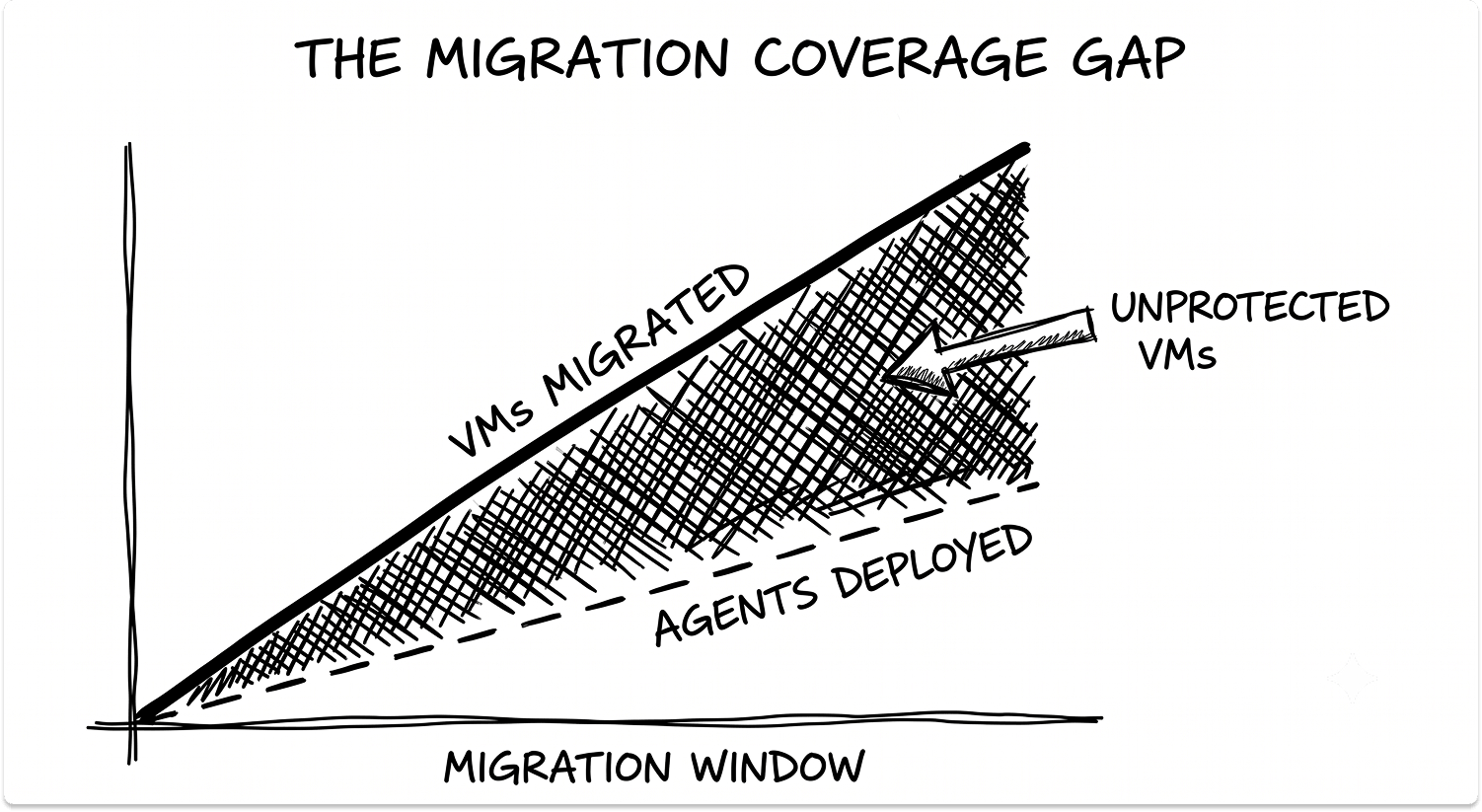
None of this announces itself. Backup dashboards report job status, not coverage completeness. The gap between what your dashboard shows and what is actually protected widens quietly throughout the migration window, and surfaces the first time a restore fails on a workload that moved three months ago.
This article covers what breaks technically, how it differs by destination platform, what your DR runbook loses when SRM and vSphere Replication go away, and the specific steps to run before any VM migrates.
Note: If you're looking to migrate from VMware to Proxmox, Nutanix, or Hyper-V, we have a separate, more detailed guide on that.
The Two VMware Mechanisms Your Backup Vendor Built On
Enterprise backup tools don't protect your workloads directly. They protect them through VMware's API layer. Remove the hypervisor and you don't just change where VMs run. You remove the two mechanisms your backup architecture depends on.
vStorage APIs for Data Protection (VADP)
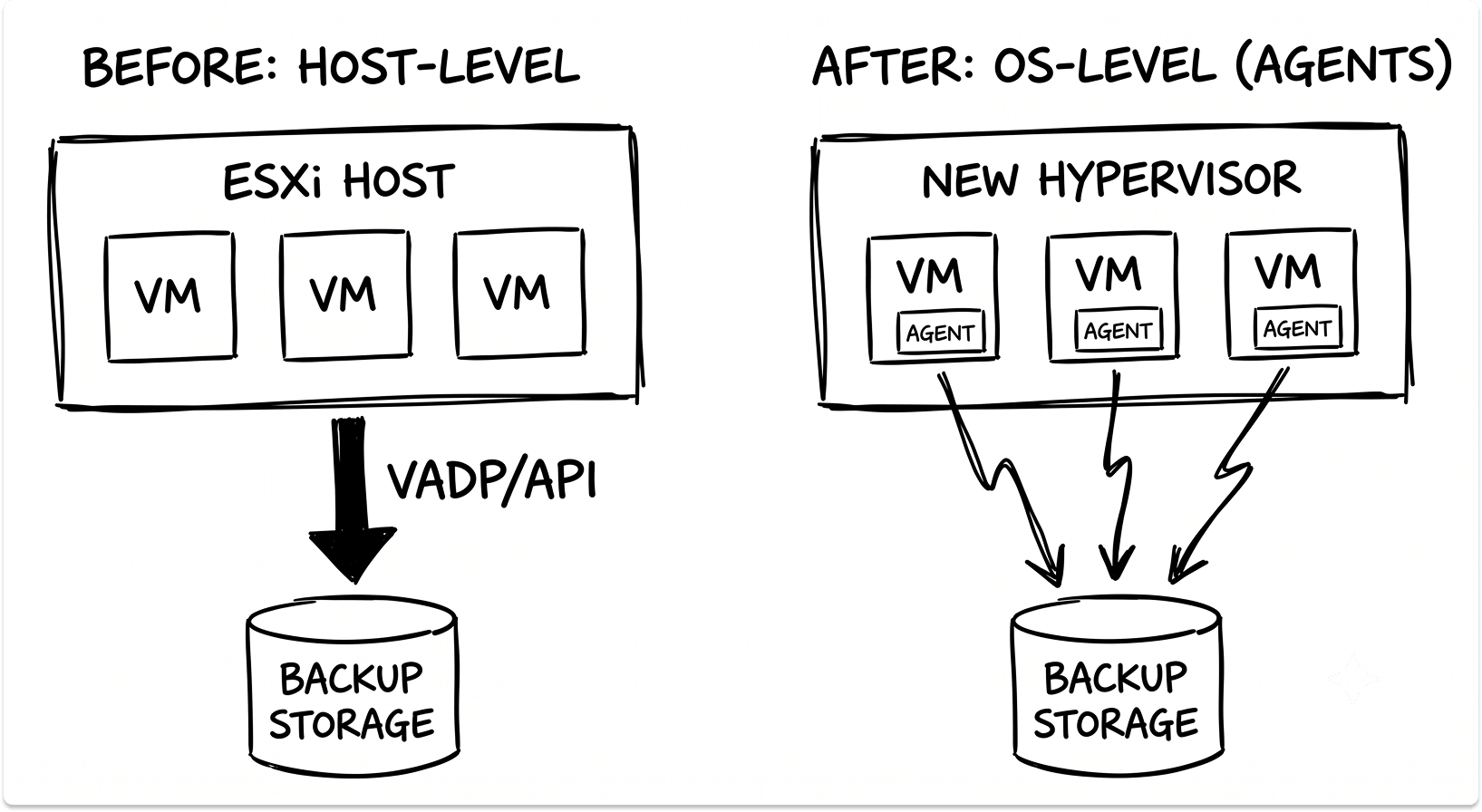
VADP is VMware's kernel-level interface that lets backup software access VM disk data directly from the ESXi host, bypassing the guest OS entirely. This is the mechanism behind agentless backup. The backup vendor's proxy connects to ESXi via VADP, mounts the VM's VMDK, and streams data without installing anything inside the VM.
VADP does not exist outside vSphere. On Nutanix AHV, Hyper-V, KVM, or Proxmox, your backup vendor uses a different access method — one with different performance characteristics, different limitations, and different maturity across platforms.
Changed Block Tracking (CBT)
CBT is VMware's block-level change journal. It records which 64KB disk sectors have changed since the last backup in a .ctk file stored alongside each VMDK. Your backup vendor queries CBT at the start of each incremental job and reads only the changed blocks. Without CBT, the backup software has to perform a full disk read.
The operational impact of losing CBT is quantifiable: backup windows increase 40-60% when incremental jobs revert to full reads, and storage consumption rises 60-80%. On an estate of multi-TB VMs with a constrained nightly window, a 4-hour job becomes a 6-7 hour job. On a constrained window, that is a SLA breach before a single workload fails.
Veeam, Cohesity, Rubrik, and Commvault all built their VMware integrations on top of VADP and CBT. That is not a design flaw. It is the architecture VMware provided, and every vendor used it well. The consequence is that the protection profile you have built around these tools is coupled to vSphere in ways that do not transfer automatically to a new platform.

Five Failure Modes That Surface When the Hypervisor Changes
1. Agentless Backup Becomes Agent-Based, and Agent Deployment Runs Behind the Migration
VADP is vSphere-only. On every other destination platform, your backup vendor falls back to in-guest agents. Every protected VM needs an agent deployed, patched, and monitored. Any VM without an agent has no backup coverage.
Mid-migration, when VMs are moving in waves, agent deployment routinely runs behind the migration schedule. The result is a class of recently migrated VMs your backup console has never seen.
What to do: Query your backup console for VMs added to the destination environment in the last 30 days. Cross-reference that list against your protected VM inventory. The delta is your current coverage gap.
2. CBT Chains Break at Migration, and the First Backup Is Always a Full
When a VM leaves vSphere, its CBT history does not transfer. The .ctk file is vSphere-native and stays behind. The first backup job to run against that VM on the new platform executes a full backup regardless of your configured schedule.
On large migration waves, this compounds. Multiple VMs generating simultaneous full backups spike your repository consumption and extend your backup window at the point when operational pressure is already highest. If migration waves overlap, the spike does too.
What to do: Before each migration wave, total the disk capacity of all in-scope VMs. Confirm your backup repository has free space equal to at least that total on top of your normal retention baseline. If it does not, either stage the wave or pre-provision repository capacity before migration starts.
3. Application-Consistent Snapshots Are Tied to VMware Tools, Not Your Backup Vendor
VMware's quiescing mechanism uses VMware Tools to signal the guest OS to flush write buffers before a snapshot. This is what creates application-consistent backups for SQL Server, Exchange, Oracle, and SAP workloads. Remove VMware Tools and you lose the quiescing channel.
On the new platform, application consistency depends on either the hypervisor's native quiescing agent (Nutanix Guest Tools, Hyper-V Integration Services) or in-guest VSS coordination. Both behave differently from VMware's model. Your existing runbooks do not validate either.
What to do: Before migration, identify every VM running a transactional workload. After migration, run an explicit application-consistent snapshot test on each one and verify recovery before the VM is declared production-stable.
4. Backup Policies Do Not Follow the VM
In vSphere, backup policies are bound to vCenter tag assignments or VM objects inside the vCenter hierarchy. That metadata is vSphere-native. When the VM moves to a new platform, it enters the new management plane as an untagged object with no policy assignment.
One of three outcomes follows:
- The VM is unprotected on the new platform
- It is picked up by a generic catch-all policy that does not match its original SLA tier
- It is still showing as protected in the old environment, running against a VM record that no longer exists
All three outcomes look acceptable on a dashboard summary report.
What to do: For every VM scheduled to migrate, document its current backup policy, SLA tier, and RPO/RTO commitment before migration begins. After migration, verify the VM appears in the correct protection group on the destination platform before removing it from the source environment.
5. The Backup Dashboard Shows Green While Coverage Has a Gap
Backup monitoring reports job status, not coverage completeness. A VM that migrated last Tuesday and was never added to a protection group on the new platform will show nothing on the new dashboard and green on the old one, running against a stale record. No alert fires. No job fails. The gap surfaces when a restore is requested.
What to do: Build a daily reconciliation report that cross-references VM inventory from your new hypervisor management plane against the protected VM list in your backup console. Any VM in inventory but absent from a protection group is a gap. Automate this query. Manual spot-checks during an active migration are not sufficient.
Where You Land Determines How Much You Have to Rebuild
The destination platform matters. Each one has a different change tracking mechanism, different backup vendor support maturity, and different specific limitations. If you haven't picked one yet, our guide to VMware alternatives and what each one replaces covers the shortlist.
Microsoft Hyper-V
Hyper-V uses Resilient Change Tracking (RCT), introduced in Windows Server 2016. RCT is the functional equivalent of CBT: block-level change journaling at the hypervisor layer. Enterprise backup vendors have mature Hyper-V integrations built on RCT, agentless backup is supported, and the backup rearchitecture burden is smaller here than any other alternative destination.
One caveat: if any destination Hyper-V hosts are running Windows Server 2012 R2, RCT is not available. Agent-based backup is the only option on those hosts.
Nutanix AHV
AHV uses Changed Region Tracking (CRT) as its change tracking mechanism. Veeam's AHV integration supports agentless backup via CRT, but specific limitations apply that do not exist in the vSphere integration:
- VMs with volume groups attached produce crash-inconsistent backups. Application-aware processing cannot guarantee consistency for these workloads.
- SureBackup is limited to verification mode only. Full isolated recovery verification labs are not supported on AHV the way they are on vSphere.
- A VM migrated between Nutanix clusters breaks its backup chain and starts a new one with no alert. Backup history is severed without notification.
- Backup copy exclusions are not supported for AHV jobs.
Proxmox VE
Veeam added Proxmox support in v12.2, released August 2024. This is the newest of the major integrations, and per Veeam's official Proxmox limitations documentation:
- VM replication is not supported. Proxmox VMs can be backed up but not replicated through Veeam.
- LXC containers are not supported. If you run LXC containers alongside VMs on Proxmox, they fall outside Veeam's scope entirely.
- iSCSI and passthrough disks are silently skipped from backup processing with no error thrown.
- Maximum 4 concurrent backup operations per storage node, which directly limits backup throughput on busy clusters.
- No pre/post-job scripts on guest processing. Automation built on backup job hooks needs to be rebuilt.
KVM (Standalone)
Without a management layer like Proxmox or oVirt, standalone KVM workloads require agent-based protection from most enterprise backup vendors. Agentless backup is not available against raw KVM without a supported management API in place.
Veeam feature parity across platforms.
Based on Veeam Backup & Replication v12.x official documentation.
If you are still evaluating which destination fits your infrastructure requirements, this breakdown of Hyper-V, VMware, and Nutanix covers the platform-layer trade-offs in depth.
Use this Questionnaire to Understand Your Risk Profile
SRM and vSphere Replication Are vSphere-Only. Your DR Runbook Needs to Be Rebuilt.
VMware Site Recovery Manager (SRM) and vSphere Replication operate exclusively within a vSphere environment. If your DR runbook depends on either for orchestrated failover, that runbook cannot execute against your new platform.
Nutanix DR (via Prism Central)
Nutanix's native DR capability is included with AOS licensing. It supports three RPO tiers:
- Synchronous replication: 0 RPO, requires Nutanix Metro Availability
- Near-Sync: 1-15 minute RPO
- Async: 1+ hour RPO
Failover is orchestrated through Recovery Plans with automated IP mapping, boot sequencing, and pre/post-recovery scripting. Non-disruptive testing runs in isolated networks with automatic cleanup.
One important caveat: Azure Site Recovery does not natively support Nutanix AHV. If your DR target is Azure, you would need to treat AHV VMs as physical machines and deploy an ASR process server inside each VM.
Zerto (HPE)
Zerto supports cross-hypervisor replication across VMware, Hyper-V, and AHV. It is one of the few tools that can actively replicate across a mixed-hypervisor estate during a transition window, which matters if you need DR coverage while workloads are split across two platforms. Continuous journaling delivers RPO down to seconds. It is licensed separately at additional cost.
Veeam Replication
Veeam supports VM replication on vSphere and Hyper-V natively. On Nutanix AHV, VM replication is not supported via the Veeam Plug-in for Nutanix AHV. On Proxmox, replication is also unsupported. If your destination is Nutanix or Proxmox and your DR plan relied on Veeam replication, that plan needs revision before migration starts.
SRM Replacement Comparison
For context on how DRaaS options differ from backup at an architectural level, that distinction matters when you are rebuilding a DR runbook from scratch rather than reconfiguring an existing one. And if you are evaluating backup platforms for your destination environment, this comparison of enterprise backup tools by RPO and RTO covers the leading options across platforms.
Pre-Migration Backup Checklist
Run through this before any VM migrates.
Step 1: Run a full VM protection audit
Export your full VM inventory from vCenter. Export your protected VM list from your backup console. Compare the two. Resolve any unprotected VMs in the source environment before migration begins. Gaps in the source carry forward.
Step 2: Classify VMs by protection mechanism
Tag each VM into one of three categories:
- VADP-agentless (standard vSphere backup)
- In-guest agent (backup agents already installed inside the VM)
- vSphere Replication or SRM (DR-replicated workloads)
Category three is the highest-risk group. These VMs lose replication the moment they leave vSphere. A replacement replication mechanism needs to be confirmed and tested before they migrate.
Step 3: Validate your backup vendor's capability matrix for the destination platform
Pull the official limitations documentation for your vendor's plug-in on the destination platform. Map each limitation against your workload profile. Flag every VM with attached volume groups (AHV crash-consistency risk), every VM running a Windows Server Failover Cluster with SQL (AHV application-consistency limitation), and every VM running LXC containers (not supported on Proxmox).
Step 4: Calculate repository headroom for the full backup spike
Total the disk capacity of all VMs in the first migration wave. Your backup repository needs free space equal to at least that total on top of your existing retention baseline. If it falls short, stage the wave or provision additional capacity before migration starts.
Step 5: Run a full backup of every in-scope VM before migration
This creates a clean, vSphere-native restore point that is not dependent on the destination platform. For any regulated workloads in scope, it also serves as the compliance baseline for the pre-migration state.
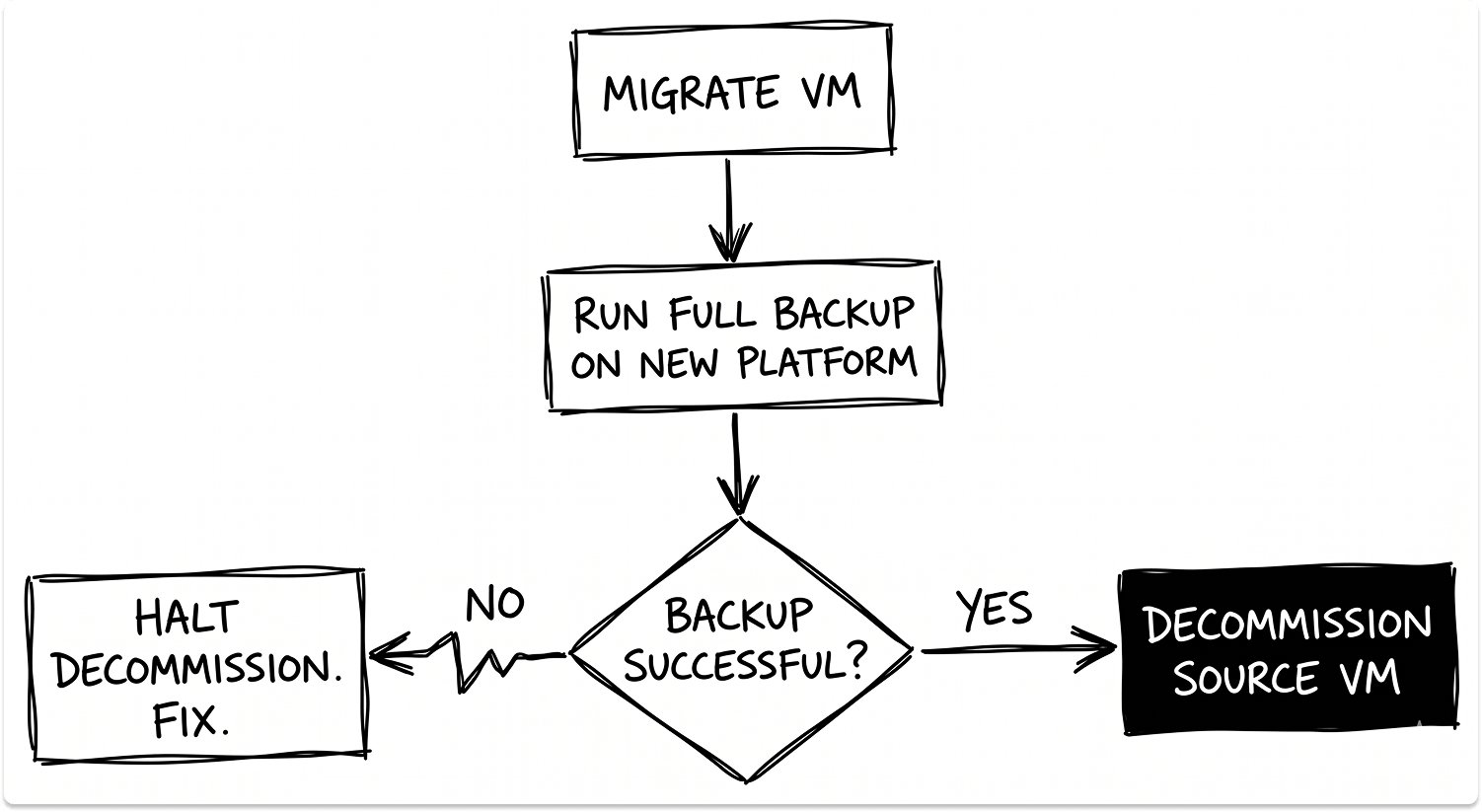
Step 6: Set the first successful backup on the new platform as the go-live gate
Define the gate explicitly before migration starts. The condition for retiring a source VM is the first successful application-consistent backup on the destination platform. Not a clean VM migration. Not a successful application smoke test. The backup.
Step 7: Build a daily coverage reconciliation report for the transition window
This report should cross-reference hypervisor VM inventory against backup protection group membership daily for the entire duration of the migration. Minimum fields: VM name, migration date, backup job assignment, last successful backup date, and SLA tier. Any VM more than 24 hours past its scheduled backup cycle without a successful job is an escalation item.
Migration Readiness Assessment
Zone 1: Source Environment
- We have run a full VM inventory export from vCenter and reconciled it against our backup console's protected VM list.
- Every VM in the source environment has a documented backup policy, SLA tier, and RPO/RTO commitment before migration begins.
- VMs protected by vSphere Replication or SRM have been identified and given a confirmed replacement replication mechanism before migration starts.
Zone 2: Backup Vendor Readiness
- We have pulled the official limitations documentation for our backup vendor's plug-in on the destination platform.
- We have identified every VM with attached volume groups (AHV) or iSCSI/passthrough disks (Proxmox) and flagged them for manual handling.
- We have confirmed our backup vendor license covers the destination platform under the same or equivalent tier.
Zone 3: Repository and Infrastructure
- We have calculated the disk capacity of all in-scope VMs and confirmed repository headroom for at least one full backup per VM beyond normal retention.
- We have pre-provisioned additional repository capacity if the headroom calculation failed.
Zone 4: Application Consistency
- We have identified every VM running a transactional workload (SQL Server, Exchange, Oracle, SAP) and tagged it as an application-consistency risk tier.
- We have scheduled application-consistent snapshot tests for each of these VMs post-migration, before production sign-off.
Zone 5: Transition Window Management
- We have a daily reconciliation report that cross-references hypervisor inventory against backup protection group membership.
- The go-live gate for each migrated VM is the first successful backup on the destination platform, documented and signed off before the source VM is decommissioned.
The Backup Layer Is Not a Migration Dependency. It Is a Separate Workstream.
The VM migration and the backup rearchitecture run on the same timeline, but they are not the same project. Treating backup as a dependency of the migration — something to sort out once production stabilizes — is the exact sequence that produces the failure modes above.
The technical work is well-defined. VADP and CBT are specific mechanisms with specific replacements on every major destination platform. What varies is how complete those replacements are and how much manual configuration bridges the gap.
The checklist above finds the gap before migration. That is considerably easier to resolve than finding it during an incident.
Find Vendors for Your Backup Strategy
Explore pre-vetted vendors for your backup strategy on our platform. Filter based on requirements, architecture, budget, and more. Match and talk to vendors only when you want to. It' private and free.
FAQ
What happens to Veeam backups when you migrate away from VMware?
When a VM leaves vSphere, Veeam loses access to two VMware-native mechanisms it depends on: vStorage APIs for Data Protection (VADP) and Changed Block Tracking (CBT). VADP is what enables agentless backup. CBT is what enables incremental-forever backup chains. On the new platform, Veeam falls back to agentless backup via the destination platform's own change tracking mechanism (RCT on Hyper-V, CRT on Nutanix AHV, Proxmox-native on Proxmox VE), but the CBT history from vSphere does not transfer. The first backup on the new platform is always a full backup, regardless of your configured schedule. Feature parity with the vSphere integration also varies by destination — Proxmox and Nutanix AHV both carry documented capability gaps not present in the Hyper-V integration.
Does SRM work after a VMware migration to Nutanix or Hyper-V?
No. VMware Site Recovery Manager (SRM) and vSphere Replication are vSphere-only products. They cannot orchestrate failover or replication against Nutanix AHV, Hyper-V, Proxmox, or any non-vSphere platform. Any DR runbook that depends on SRM needs to be rebuilt. The main replacements are Nutanix DR (included with AOS licensing, supports 0 RPO synchronous replication and 1-15 minute Near-Sync), Zerto (cross-hypervisor, RPO down to seconds via continuous journaling), and Azure Site Recovery (supports VMware and Azure, but does not natively support Nutanix AHV). Veeam Replication is available on vSphere and Hyper-V but is not supported on Nutanix AHV or Proxmox VE.
What is the difference between CBT and RCT in backup and why does it matter for VMware migrations?
Changed Block Tracking (CBT) is VMware's hypervisor-level mechanism for tracking which disk blocks have changed since the last backup. It stores this information in a .ctk file alongside each VMDK and allows backup vendors to read only changed blocks instead of performing a full disk read on every cycle. Resilient Change Tracking (RCT) is Microsoft Hyper-V's equivalent, available from Windows Server 2016 onwards. Nutanix AHV uses Changed Region Tracking (CRT). The practical difference for migrations is that CBT history is vSphere-native and does not transfer to any destination platform. When a VM migrates off vSphere, the new platform starts a fresh change tracking history, and the first backup is always a full backup. On Hyper-V, the transition is least disruptive because RCT is a mature, feature-equivalent mechanism. On Nutanix AHV and Proxmox, there are additional platform-specific limitations that go beyond the change tracking gap.
How do you protect backup coverage during a phased VMware exit?
A phased VMware exit creates a split-estate problem: workloads live across two hypervisors simultaneously, and backup tools tuned for vSphere do not automatically apply equivalent policies on the destination platform. Three controls close the gap. First, build a daily reconciliation report that cross-references the new hypervisor's VM inventory against your backup console's protected VM list — any VM in inventory but absent from a protection group is an unprotected workload. Second, set the first successful application-consistent backup on the destination platform as the explicit go-live gate for each migrated VM, not just application testing. Third, run a full backup of every in-scope VM in the source vSphere environment before any VM migrates, creating a clean restore point that does not depend on the destination platform being configured correctly.
Which VMware alternative has the best backup support — Hyper-V, Nutanix AHV, or Proxmox?
For backup architecture continuity, Hyper-V carries the smallest rearchitecture burden. Its Resilient Change Tracking (RCT) mechanism is a mature, direct equivalent to VMware's CBT, and enterprise backup vendors including Veeam, Commvault, Rubrik, and Cohesity have long-standing Hyper-V integrations with full agentless support. The one caveat is Windows Server 2012 R2 hosts, which do not support RCT and require agent-based backup. Nutanix AHV is the next closest, with agentless backup via Changed Region Tracking (CRT), but carries documented Veeam-specific gaps including crash-inconsistent backups for VMs with volume groups attached and SureBackup limited to verification mode only. Proxmox VE has the highest rearchitecture burden. Veeam added Proxmox support in August 2024, making it the newest and least field-tested integration. VM replication, LXC container backup, and pre/post-job scripting on guest processing are all unsupported on Proxmox via Veeam.