



How to Plan a Windows Server Upgrade or Move to Azure
Windows Server 2016/2019 end-of-support dates, ESU pricing, in-place upgrade paths, and how to migrate to Azure with Azure Migrate. A technical guide for IT leaders.

Summary:
Windows Server upgrade planning is governed by fixed end-of-support dates: Extended Security Updates for Server 2012/2012 R2 end October 13, 2026, and Server 2016 loses all support January 12, 2027.
Organizations can upgrade in place, migrate roles to fresh hardware, rehost to Azure IaaS, or replatform to a managed Azure service, and each workload can take a different path depending on its constraints and existing Microsoft licensing.
A Windows Server upgrade rarely starts with a strategy document. It starts with a date. An end-of-support notice lands in your inbox, a vulnerability scan flags an unsupported OS, or a new line-of-business application refuses to install on Server 2012 R2.
The server nobody wanted to touch becomes the one thing standing between the business and its next project.
The decision in front of you has four real destinations: upgrade the operating system in place, rebuild on fresh hardware and migrate the roles across, rehost the workload in Azure, or replatform it onto a managed Azure service.
Each path has different mechanics, different failure modes, and a different bill. The right one depends on the workload, the deadline, and what you already pay Microsoft.
The Support Timeline That Sets Your Deadline
Everything downstream is governed by one thing: the date your version stops receiving security updates. When a version reaches end of support, Microsoft stops shipping security patches, bug fixes, and technical assistance. The OS keeps running. Every new vulnerability discovered after that date stays open forever, new agent and application versions stop certifying against it, and the next audit or cyber-insurance review flags it on sight.
Here is where each version stands, drawn from Microsoft's lifecycle and Extended Security Updates documentation.
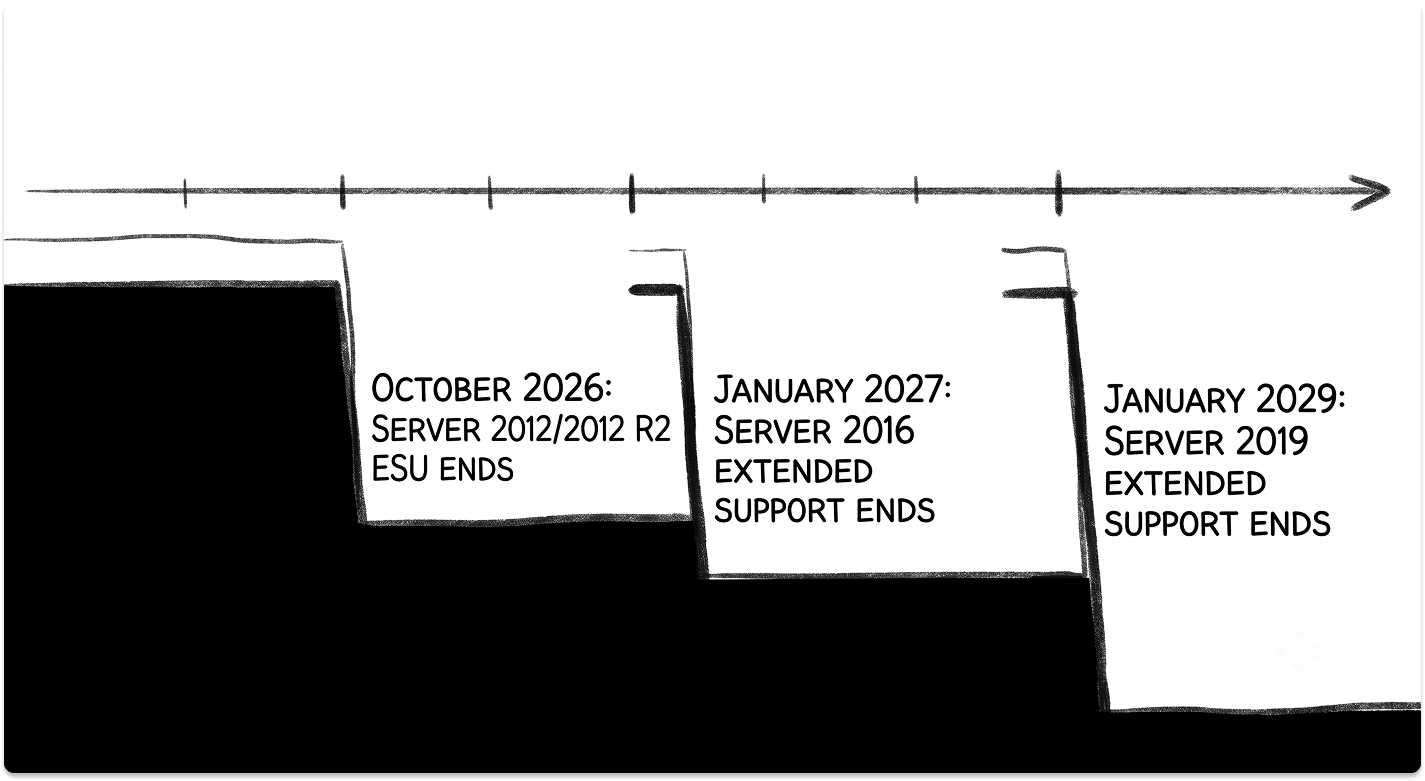
Two of these deadlines are close enough to reshape your roadmap this quarter. Windows Server 2012 and 2012 R2 are in the final year of paid Extended Security Updates, which end for good on October 13, 2026.
Windows Server 2016 loses all support on January 12, 2027, and it still runs a large share of production estates: telemetry from asset-discovery vendor Lansweeper, reported in early 2026, put Server 2016 at roughly a fifth of the Windows Servers it monitors. That figure is vendor telemetry rather than a census, so read it as direction, not gospel, but the direction is clear enough.
The distinction between mainstream and extended support matters for planning. A version in mainstream support gets features, bug fixes, and security patches. Once it crosses into extended support, it receives security fixes only.
Server 2019 sits there today, and Server 2022 moves into that phase in October 2026 with no functional impact for most workloads. Running past the extended date is the line you cannot cross safely.
The stakes are not theoretical. The Verizon 2025 Data Breach Investigations Report found that exploiting a known vulnerability was the initial access vector in 20% of breaches, a 34% jump over the prior year, closing in on stolen credentials at 22%.
Ransomware appeared in 44% of breaches, up from 32%. An unpatched, out-of-support server is precisely the kind of exposure that shows up in those numbers, and it is one of the few you can close entirely by choosing to act.
If your ransomware plan leans on backups alone, the harder question of what happens when there's nothing left to restore is worth sitting with before, not after, an incident.
Extended Security Updates Are a Bridge, Not a Destination
When the calendar runs out before your migration does, ESU buys time. It delivers Critical and Important security patches for a maximum of three years past end of support, and nothing else. No features, no non-security fixes, no design changes.
Two facts about ESU are worth getting right, because plenty of guidance gets them wrong.
Delivery has modernized too. You can still activate ESU with a MAK key from Volume Licensing, or you can enable it through Azure Arc, which delivers the updates keyless on a pay-as-you-go monthly basis and, in the same motion, projects the server into Azure for governance. Treat ESU as a runway to finish a migration cleanly, not a way to avoid one.
Your Four Paths, and How to Choose Between Them
Before the mechanics, the shape of the decision:
You do not have to pick one path for the whole estate. Most environments end up with a mix: a few servers upgraded in place, the domain controllers rebuilt clean, a database rehosted to Azure, and a legacy app retained on ESU while its replacement is built. The value is in matching each workload to the path that fits it.
In-Place Upgrade Mechanics
The in-place upgrade got materially better with Windows Server 2025. Earlier releases allowed only a two-version jump. Server 2025 supports a four-version jump on non-clustered systems, so a box running 2012 R2, 2016, 2019, or 2022 can go straight to 2025 without intermediate hops. Clustered systems still advance one version at a time through a rolling upgrade.
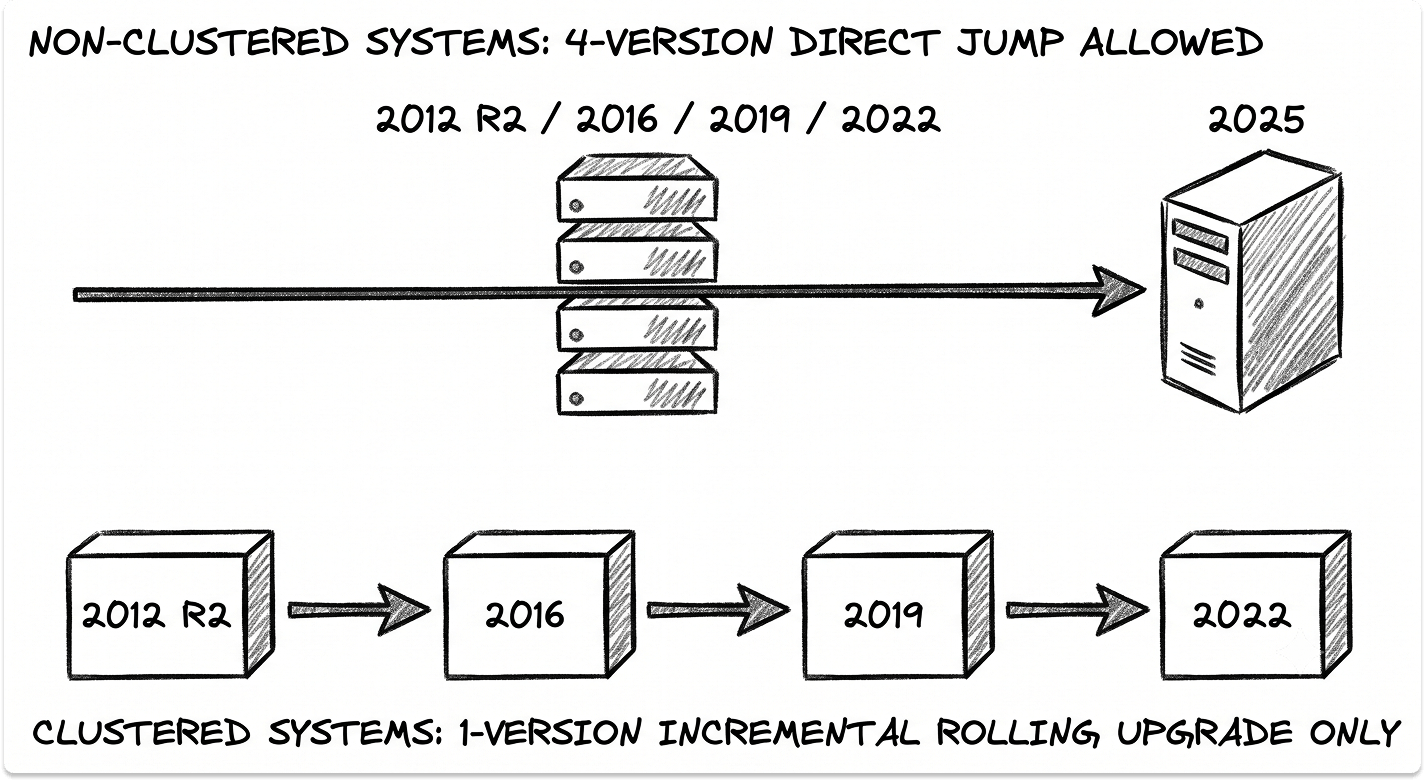
There are two ways to run it. You can boot the Server 2025 media and run setup, or, for servers on 2019 and 2022, you can take the upgrade through Windows Update. The Windows Update route is opt-in. You set a registry value to allow it and install the required cumulative update first.
Value:  AllowWindowsServerFeatureUpdate
Type:   REG_DWORD
Data:   1
(under the Windows Update UX settings key)
Prerequisite cumulative update:
	Windows Server 2022  ->  KB5078766
	Windows Server 2019  ->  KB5078752
Confirm the exact current KB against Microsoft's documentation before you deploy, because these roll forward. Each upgraded server needs a new Server 2025 product key, and the single most common cause of a failed upgrade is insufficient free space on the system drive, so clear 30 to 40 GB before you start and budget roughly two hours per server.
A few hard limits apply to any in-place upgrade:
One rule sits above the rest: do not upgrade a domain controller in place. Microsoft's own guidance is to promote a fresh DC and demote the old one. An in-place DC upgrade keeps the Active Directory database locked to its legacy 8 KB page size and forfeits the 32 KB format that Server 2025 introduces. Domain controllers get the clean-install treatment, always.
Migrating Roles the Right Way
When you rebuild rather than upgrade, each role has its own migration mechanics.
Active Directory Domain Services
To add a Server 2025 domain controller, your domain and forest must already sit at least at the Windows Server 2016 functional level. The workflow is well-trodden:
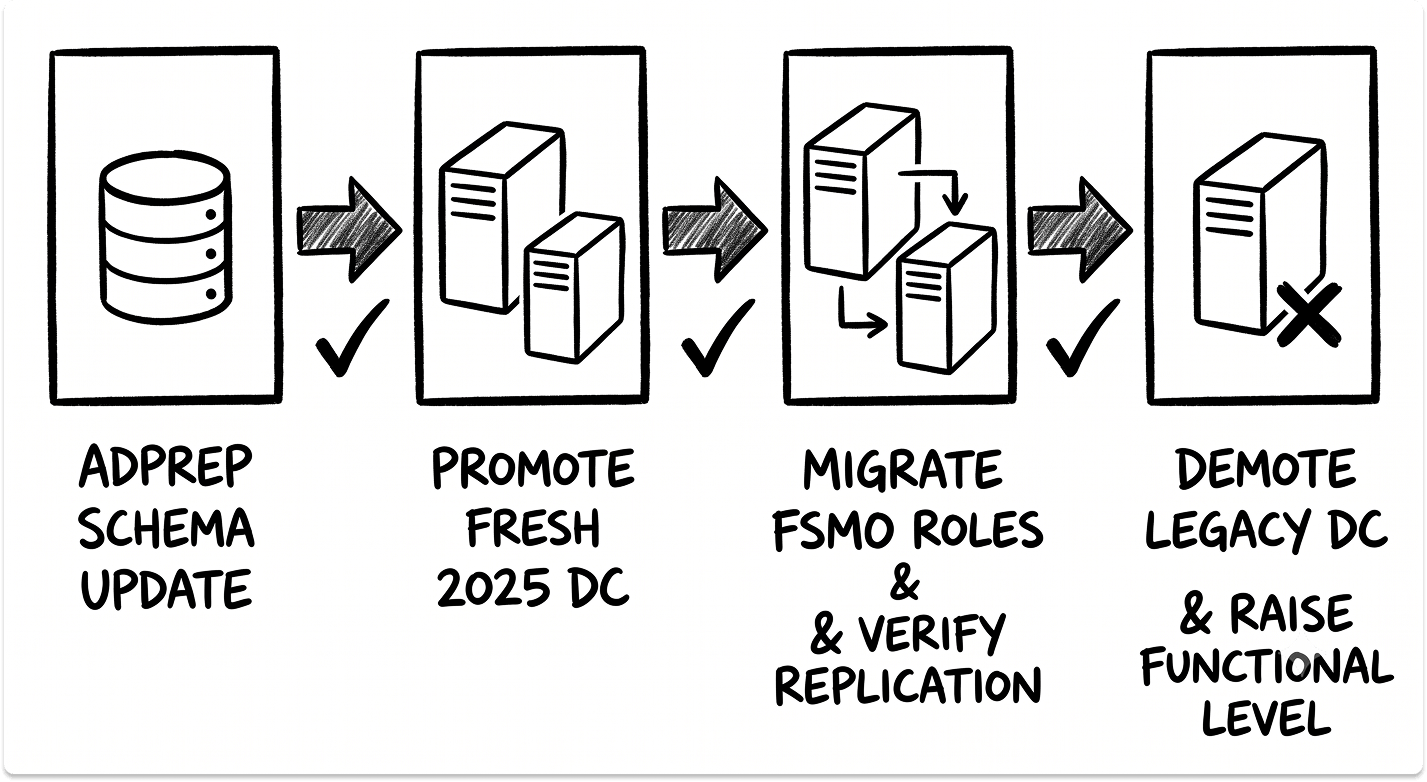
# Move all five FSMO roles to the new DC
Move-ADDirectoryServerOperationMasterRole -Identity "NEW-DC01" `
-OperationMasterRole SchemaMaster,DomainNamingMaster,PDCEmulator,RIDMaster,InfrastructureMaster
netdom query fsmo # confirm role placement
dfsrmig /getglobalstate # SYSVOL should report "Eliminated" (running on DFSR)
repadmin /replsummary # replication health
dcdiag /v # domain controller diagnostics
Raising the functional level with Set-ADDomainMode and Set-ADForestMode is a one-way operation, and Server 2025 brings the first new functional level since 2016. Confirm replication is clean and SYSVOL runs on DFSR before you commit. If this migration is happening alongside a broader identity shift, the mechanics of moving from on-prem Active Directory to Microsoft Entra ID deserve their own plan rather than being bolted onto the server work.
File servers
The Storage Migration Service, driven from Windows Admin Center, inventories a source server, transfers its files and shares, and can optionally cut over by taking on the source's identity and IP address so clients never notice the swap. It reads sources as old as Windows Server 2003, along with Linux Samba servers and NetApp CIFS, and a 2019 or 2022 destination roughly doubles transfer performance over older targets.
DHCP, DNS, and other roles
The older Windows Server Migration Tools still handle role, setting, and share moves through Export-SmigServerSetting and Import-SmigServerSetting, with data moving over TCP and UDP port 7000. The source and destination need to run the same UI language.
Moving to Azure: The Mechanics
If the destination is Azure, the first decision is how much of the workload you intend to change. Microsoft's Cloud Adoption Framework frames this as a set of options often called the Rs:
Azure Migrate is the assessment and move engine
Azure Migrate is the hub for the whole exercise. You deploy an appliance that discovers your estate agentlessly: VMware through vCenter, Hyper-V and physical or other-cloud servers through direct connections.
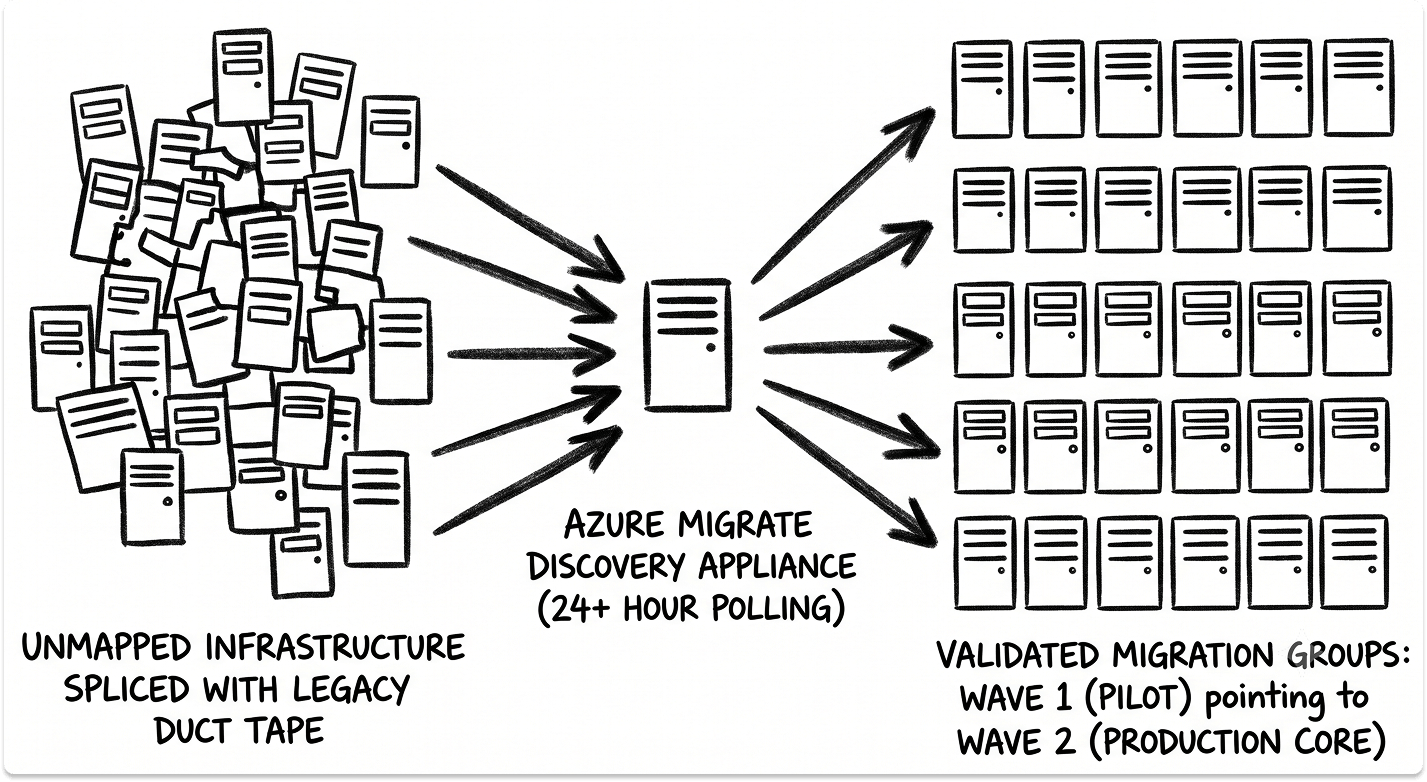
It reads inventory, running software, and SQL and web-app details using credentials but no installed agents. Its agentless dependency mapping runs across up to 1,000 servers per appliance, polling TCP connections every five minutes with no Log Analytics ingestion cost, which lets you build accurate migration groups so nothing gets stranded behind an undiscovered dependency.
The assessment returns Azure readiness, right-sized VM and SQL recommendations, and projected cost. The migration tool then performs the move. Agentless VMware migration is native to Azure Migrate; agent-based VMware, Hyper-V, and physical migrations run on the Azure Site Recovery replication engine underneath. If you are weighing tooling across clouds, the comparison of AWS Migration Hub, Azure Migrate, and Google Cloud is a useful companion read.
One point of confusion worth clearing: Azure Migrate and Azure Site Recovery share an engine but serve different jobs. Microsoft's guidance is to use Azure Migrate for migration and Azure Site Recovery for disaster recovery.
Migration is a one-way journey with a test-migration step before you commit and a final Complete Migration action; there is no built-in failback. If you need failback capability, that lives on the DR side.
SQL Server has three landing spots
Databases are where the rehost-versus-replatform choice gets concrete.
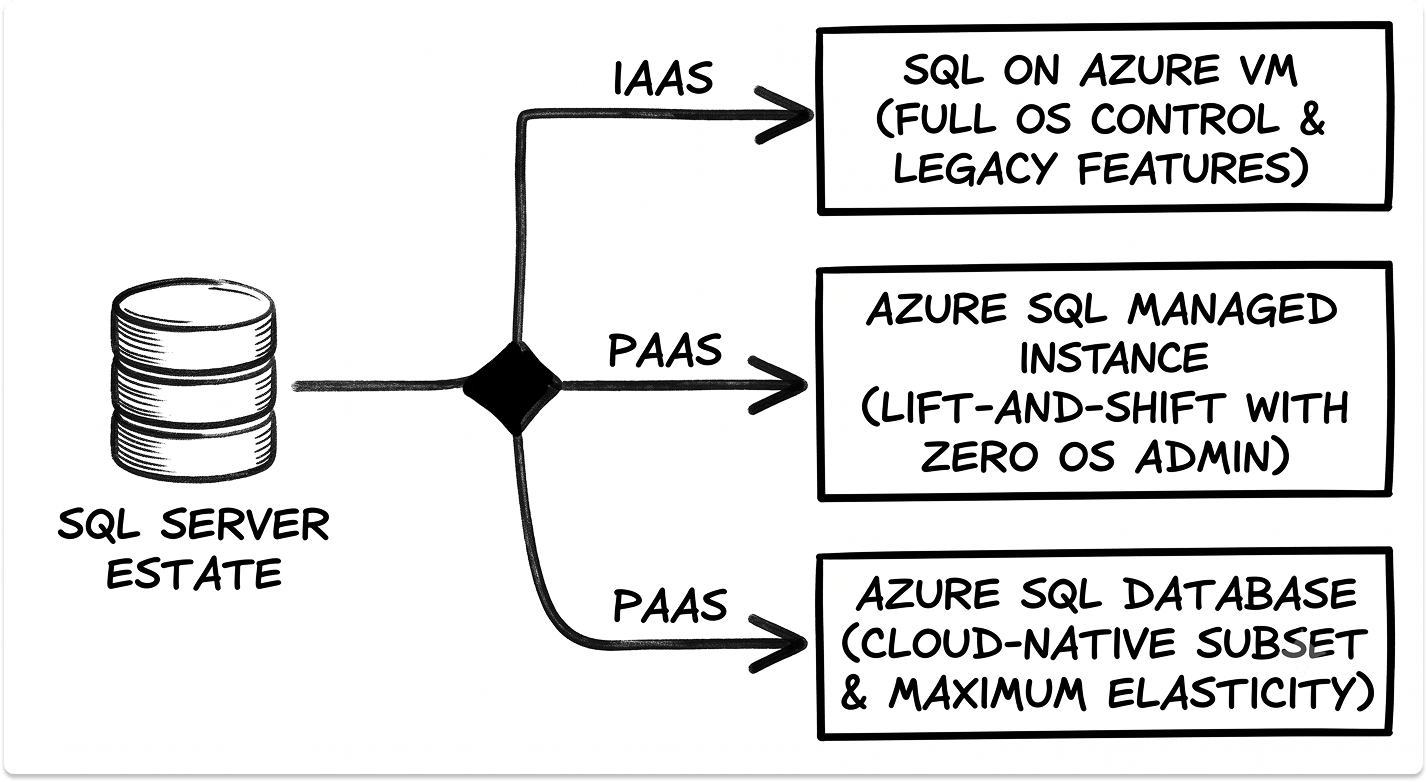
The Azure Database Migration Service handles both online moves with minimal downtime and offline moves. Managed Instance is the usual home for an existing SQL Server estate that wants out of patching and backups without a rewrite.
Azure Hybrid Benefit is the licensing lever
If your Windows Server or SQL Server licenses carry active Software Assurance, Azure Hybrid Benefit lets you apply them to Azure compute and pay only for the base infrastructure.
Microsoft cites savings up to around 40% on Windows VMs, up to 85% on SQL against pay-as-you-go, and more when stacked with Reserved Instances. A one-time 180-day dual-use window covers the migration overlap, and an eight-core minimum per VM applies.
Model the realized number, not the headline. Independent analysis summarized by Trusted Tech Team found net savings closer to 23% once Windows Server 2025 licensing was accounted for. Run the calculator against your own inventory.
Cloud bills have a way of drifting, and keeping a handle on that from day one is easier than clawing it back later, a discipline covered in more depth in our look at cloud cost optimization.
Arc, Azure Local, and the VMware question
For servers that stay on-prem, Azure Arc projects them into Azure Resource Manager so they inherit Azure Policy, RBAC, Update Manager, Defender for Cloud, and keyless ESU. The Arc control plane is free; the add-on services bill per server.
Azure Local, formerly Azure Stack HCI, runs on-prem infrastructure that behaves like Azure, and under Hybrid Benefit its host and Windows Server subscription fees are waived along with ESU.
Azure VMware Solution runs a VMware estate in Azure with little to no refactoring. It has taken on new weight since Broadcom changed VMware Cloud Foundation licensing in November 2025 to bring-your-own-subscription on hyperscalers.
That shift has pushed some teams to reassess whether to stay on VMware at all. If that is the conversation in your organization, start with our guide to VMware alternatives and what each one replaces. Our breakdowns of Hyper-V versus VMware versus Nutanix and what happens to your backup strategy when you leave VMware go deeper than this guide can.
Patching changes on the way in
Microsoft deprecated WSUS in September 2024. It still ships in Server 2025 and stays supported through the OS lifecycle, but it receives no new features, and Server 2025 hardening blocks it from distributing ESU to end-of-life systems.
Azure Update Manager is the direction of travel: it governs update compliance across Azure, Arc-connected on-prem, and multicloud from one place, free for Azure VMs and free for Arc servers when you carry Defender for Servers Plan 2, Software Assurance, or Arc-enabled licensing.
If you are also rethinking device and endpoint management, the same pattern shows up in the SCCM to Intune migration work, and it is worth sequencing the two together.
Networking follows the same landing-zone logic either way. ExpressRoute gives you private, predictable bandwidth; a VPN gateway is faster to stand up over the internet. Build the landing zone, the networking, identity, and policy guardrails, in the Ready phase before any production workload moves.
On-Prem, Azure, or Hybrid: Deciding Per Workload
The destination question comes down to a handful of technical criteria rather than a blanket cloud-first or cloud-never stance.
If a public-cloud rehost does not clear your cost hurdle once you run real numbers, an on-prem hardware refresh or Azure Local is a rational answer, and the framework for evaluating IaaS providers applies whether the infrastructure sits in Azure or your own rack.
A Phased Plan You Can Run
The sequence that keeps these projects out of trouble is consistent across estates.
The rollback step is the one teams shortchange. In-place upgrades attempt an automatic rollback on failure, and that rollback is not always successful, so a tested restore is the real safety net. Line up your backup and disaster recovery approach before the first cutover, not after the first surprise.
Risks Worth Naming Before Day One
Application compatibility is the risk that derails schedules, so test the actual applications on the target OS or service before you commit a wave. Drivers and third-party agents lag new OS releases and need version checks.
Licensing gets miscalculated when teams plan against headline savings instead of modeled ones. Downtime windows get underestimated.
And the security posture during a half-finished migration is its own exposure, because a partially migrated end-of-life server left reachable is exactly the gap a scanner, or an attacker, finds first. Continuous vulnerability management over the transition window is not optional if the estate includes anything past its support date.
The Deadline Decides. You Decide the Path.
The date on the calendar is fixed. Server 2012 R2's ESU runs out in October 2026, Server 2016 goes dark in January 2027, and no amount of planning moves those lines.
What you control is the path, and the path is a sequencing problem more than a technical one. Inventory first, map dependencies second, assign each workload its honest destination, and keep a tested rollback under every cutover.
Get the sequence right, and the tooling, Azure Migrate, Storage Migration Service, the Database Migration Service, does the heavy lifting on schedule. The servers that felt like liabilities become the projects you finished before the deadline made the decision for you.
If the estate is held together with more workarounds than you would like to admit, that is worth confronting directly, and our piece on infrastructure held together with digital duct tape is a candid place to start.
Looking for cloud migration or Windows Server partners?
We keep a catalog of pre-vetted vendors on our platform. Explore options based on your workloads, timeline, and budget, and reach out only when you are ready to talk. It is private and completely free for you.
FAQ
When does Windows Server 2016 reach end of life?
Windows Server 2016 reaches end of extended support on January 12, 2027. After that date it stops receiving security updates entirely. Mainstream support already ended on January 11, 2022, so the version has been in security-only mode for years. With under twelve months of support remaining, 2016 workloads should be in active migration planning now.
Can you upgrade Windows Server 2016 directly to Windows Server 2025?
Yes. Windows Server 2025 supports a four-version in-place jump on non-clustered systems, so 2012 R2, 2016, 2019, and 2022 can all upgrade directly to 2025 without intermediate steps. Earlier releases allowed only a two-version jump. Clustered systems still upgrade one version at a time through a rolling upgrade, and each server needs a new Server 2025 product key.
Is Windows Server ESU free in Azure?
Yes. Workloads running in Azure, Azure Dedicated Host, Azure VMware Solution, and the Azure Local portfolio receive Extended Security Updates at no cost beyond the price of running the VM, with no Software Assurance requirement. On-premises ESU for Server 2012 and 2012 R2 is paid, at a flat 100% of the full license price per year for up to three years.
What is the difference between Azure Migrate and Azure Site Recovery?
Azure Migrate is for migrating servers to Azure; Azure Site Recovery is for disaster recovery. They share a replication engine, which causes the confusion, but Microsoft's guidance is to keep the jobs separate. Migration through Azure Migrate is one-way, with a test-migration step and a final Complete Migration action and no built-in failback. Failback is a disaster-recovery capability.
How much does Azure Hybrid Benefit actually save?
Microsoft cites up to around 40% on Windows VMs and up to 85% on SQL against pay-as-you-go pricing, with more when combined with Reserved Instances. Realized savings run lower once current licensing is factored in; independent analysis has put the net figure closer to 23%. Run the Azure pricing calculator against your own inventory rather than planning against the headline percentage.
What replaced WSUS for patch management?
Microsoft deprecated WSUS in September 2024. It still ships in Server 2025 and remains supported through the OS lifecycle, but it gets no new features and cannot distribute ESU to end-of-life systems under Server 2025 hardening. Azure Update Manager is the strategic replacement, managing update compliance across Azure, Arc-connected on-premises servers, and multicloud from a single dashboard.
Should you upgrade a domain controller in place?
No. Microsoft recommends promoting a fresh domain controller on Windows Server 2025 and demoting the old one rather than upgrading in place. An in-place DC upgrade keeps the Active Directory database locked to the legacy 8 KB page size and forfeits the 32 KB format introduced in Server 2025. Move the FSMO roles to the new DC, verify replication, then demote the legacy controllers.


