The SCCM (ConfigMgr) to Intune Migration Guide: Workload Sequencing, Failure Modes, and Decommissioning
Co-management is the migration, not a cutover. The order to switch the seven workloads, what breaks at each step, the failure modes that surface mid-flight, and how to retire ConfigMgr without stranding devices.
%20to%20Intune%20Migration%20Guide.png)
Summary:
Migrating from SCCM (ConfigMgr) to Intune is a gradual handover through co-management, not a cutover: management authority moves one workload at a time while both tools manage the same device.
The risk lives in the switching order and the gaps between steps, not Intune's features. Existing hybrid-joined devices cannot convert to cloud-native in place, which sets every timeline.
When replacing SCCM with Intune, you actually move management authority from one to the other, one workload at a time, while both tools manage the same device. The risk does not live in Intune's feature set. It lives in the order you switch things and in the gaps that open between each step.
That reframing matters because most migration content treats this as a project with a start and an end date. It is closer to a controlled handover that runs for months, where ConfigMgr keeps the lights on until each capability has a proven replacement.
Treat it as a cutover and you generate the exact failures this guide is built to prevent: devices that report compliant while protected by nothing, apps that loop on a broken detection rule, and a class of freshly migrated machines your console has never seen.
One hard fact shapes every timeline before you write a single policy. An existing Microsoft Entra hybrid joined device cannot become a cloud-native Entra joined device in place. It gets reset and re-enrolled through Autopilot.
If your fleet is mostly domain-joined laptops today, that single constraint, not packaging or policy authoring, is the thing that sets your schedule.
And to kill the question that hangs over every one of these projects: SCCM is not dead. Microsoft has committed to continued support focused on security, stability, and long-term support, and the product moves to an annual release cadence starting with version 2609 in September 2026.
Co-managing indefinitely is a legitimate end state, not a failed migration. The goal is to move what benefits from the cloud and keep what genuinely still needs ConfigMgr.
What Maps to What When You Leave ConfigMgr
Before the mechanics, get oriented. Configuration Manager is a single integrated platform. Intune is a set of cloud services, and ConfigMgr capabilities map to different ones, sometimes to several, sometimes to nothing. This table is the territory.
A blunt summary for planning purposes: Intune handles the large majority of mainstream endpoint scenarios in 2026, and the residual that still favors ConfigMgr is specific and identifiable.
Server management, air-gapped networks, complex OS deployment task sequences, deep software metering, and the most granular custom reporting are where SCCM keeps the edge. Know which of those you depend on before you commit to a date, because they decide whether your end state is full cloud-native or permanent co-management.
Co-Management Is the Spine. Set It Up First.
Tenant attach, co-management, and cloud attach are three different things
The single most common point of confusion, and worth settling before anything else.
Tenant attach syncs your ConfigMgr devices up to the Intune admin center so you can see them and run a handful of remote actions from the cloud console. It has zero impact on the device. Nothing is enrolled, nothing reboots, the ConfigMgr client stays fully in charge. It is the safe first toe in the water.
Co-management is the real thing. The device is concurrently managed by the ConfigMgr client and enrolled in Intune as an MDM, and you assign authority for each capability to one side or the other.
Cloud attach is just the umbrella term covering both. Tenant attach is a useful confidence-builder and gives you cloud visibility on day one, but it is not migration. Co-management is.
Why co-management beats a clean cutover
Enabling co-management is transparent to the user. There is no reboot, no agent install, no prompt, no interruption. Every existing policy and app keeps working because authority does not move until you move it.
The device immediately becomes eligible for cloud capabilities like Conditional Access compliance, and every workload you shift is reversible. You keep the ConfigMgr investment running underneath while you build and prove the Intune side above it. A cutover throws all of that away and bets the fleet on getting every replacement right simultaneously.
Prerequisites, as a checklist
Confirm all of these before you enable anything:
- Licensing. Microsoft Entra ID P1 or P2 and at least one Intune license. Assign an Intune license to the admin account doing the work, or sign-in fails with an unhelpful generic error. An Enterprise Mobility + Security subscription covers both pieces.
- Configuration Manager. A supported current-branch build. As of mid-2026 the recent baselines are 2503, 2509, and 2603, with the annual cadence beginning at 2609. Each build carries 18 months of support.
- Join state. Devices must be Entra hybrid joined or Entra joined. Entra-registered, also called workplace-joined, devices are not supported for co-management. This catches teams who assume any Entra-known device qualifies.
- Automatic enrollment. Enable Windows automatic enrollment in Entra under Mobility (MDM and MAM), with the MDM user scope set to All or a pilot group.
- Roles. Entra Global Administrator to create the Entra apps, ConfigMgr Full Administrator with the All scope to enable co-management, and an Azure Subscription Manager if you intend to stand up a Cloud Management Gateway.
You do not need a Cloud Management Gateway for co-management
This trips up a lot of planning. A CMG is not required for co-management, and co-management is not required to use a CMG. A CMG exists to let the ConfigMgr client reach internet-based devices that never touch the corporate network.
If all your co-management candidates check in on the LAN or VPN, you can skip the CMG entirely. Add it only when you have ConfigMgr-managed devices that live off-network and you still need ConfigMgr to reach them during the transition.
The Workload Sequencing Playbook
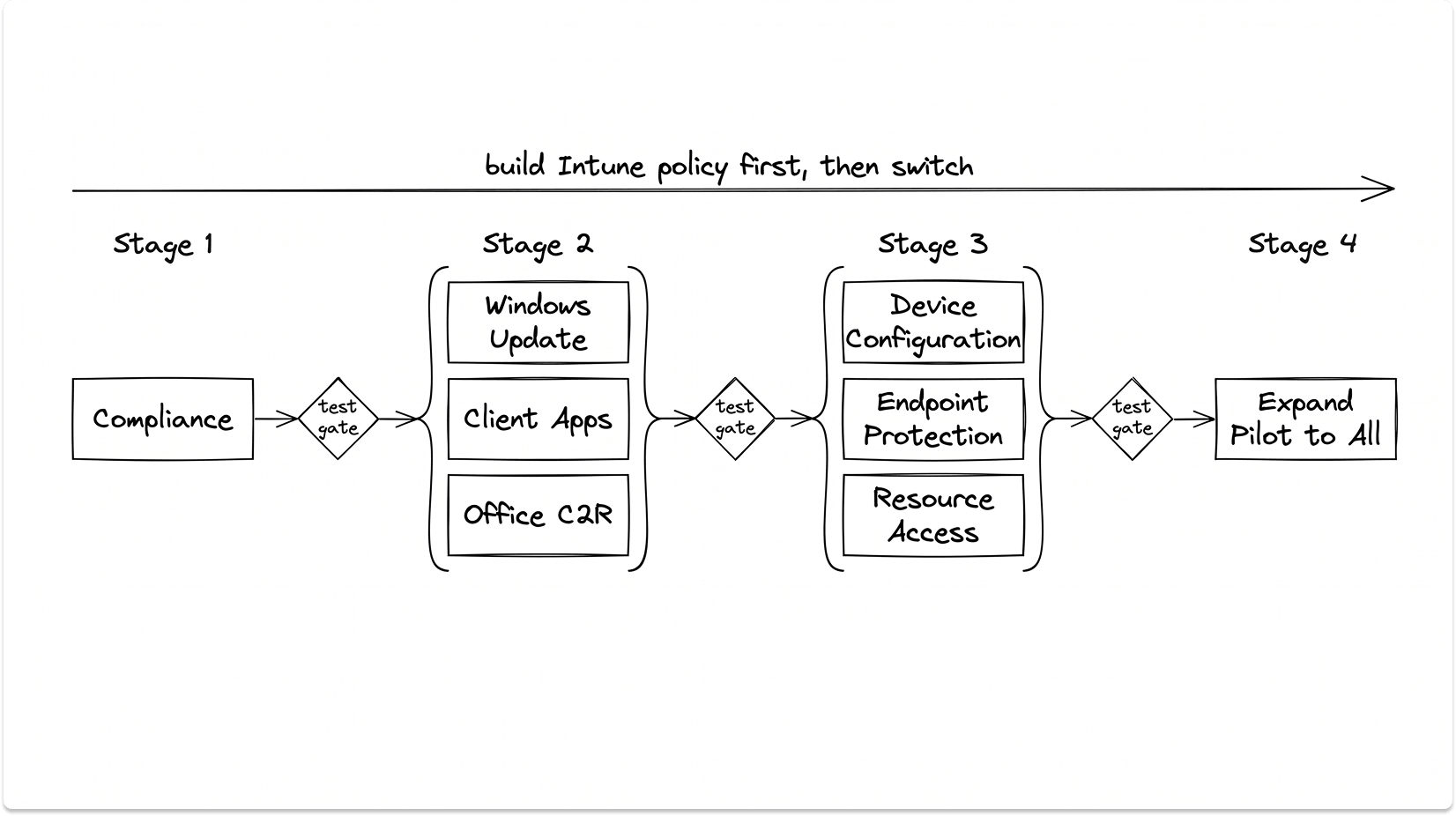
This is the heart of the migration. Co-management divides device management into seven workloads, and each one has three possible authority settings: Configuration Manager, Pilot Intune (only a designated pilot collection follows Intune), and Intune (every co-managed device follows Intune). A workload always has exactly one authority. The cardinal rule: build and deploy the Intune-side policy first, confirm it lands, and only then move the slider.
Here is what each workload controls and what to watch when you switch it.
The order, and the reasoning
Start with Compliance. It is the lowest-risk, highest-value first move. Switching it lets Intune evaluate device health and feed Conditional Access, and you can still require evaluation of your existing ConfigMgr configuration items inside the Intune compliance policy. You adopt cloud-based Conditional Access without abandoning a single existing check.
Then the common group: Windows Update, Client Apps, and Office Click-to-Run. Client Apps is a comfortable early move because it is the one workload that tolerates dual targeting, so you can deploy from Intune while ConfigMgr still deploys too, and validate side by side. When you switch Windows Update, you must manually set the ConfigMgr client's Software Updates setting to off for the affected collection, or the two update engines will fight.
Then the configuration group together: Device Configuration, Endpoint Protection, and Resource Access. These are the deepest-reaching settings and the most likely to surprise you, so move them as a coordinated set after the easier workloads have built your confidence. Note the behavior that catches people: Intune configuration profiles do not apply to a co-managed device until the Device Configuration workload is switched, even though the profiles are assigned and showing as targeted.
Finally, expand each workload from Pilot Intune to Intune once the pilot ring is stable.
Reversibility and its limits
Every workload can be switched back to Configuration Manager. The catch is version pinning: if Intune installed a newer build of Windows or Office while it held the workload, switching back does not roll that version down.
Reversibility also depends entirely on the ConfigMgr client and infrastructure still existing. Once you uninstall the client and tear down the site, there is nothing to switch back to. Keep the safety net until you are certain.
The tattooing trap
Some settings persist on the device after you unassign the policy that set them. Setting a value back to Not Configured does not always revert it; the registry value can stay stuck.
This is why you pilot on disposable hardware, then on a small group of technically savvy users, and never on the IT department's own machines or the executive fleet first. If you break every machine in IT, there is no one left to fix them. For badly tattooed settings, a rebuild is often faster than registry surgery.
Migrating Applications: Win32, the Content Prep Tool, and What Will Not Translate
The application model changes shape. You wrap installers with the Microsoft Win32 Content Prep Tool (IntuneWinAppUtil.exe, on GitHub) into an encrypted .intunewin package, then define how Intune installs and detects it. The tool is scriptable, so it fits a CI/CD pipeline, and it reads the MSI product code into the package for auto-populated detection.
Get the current numbers right, because stale guidance is everywhere. The per-app size limit is 30 GB, raised from the old 8 GB cap in February 2024. If you read an article still citing 8 GB, it predates the change.
Two behaviors cause most early failures:
- Apps install in SYSTEM context by default. Any script that references a user's mapped drive, an H: path, or an on-prem share will fail, because SYSTEM sees none of those. Rewrite installers to be self-contained.
- Installs must be silent and unattended. Intune does not support interactive installation. Approaches that force a UI to appear are unsupported and brittle.
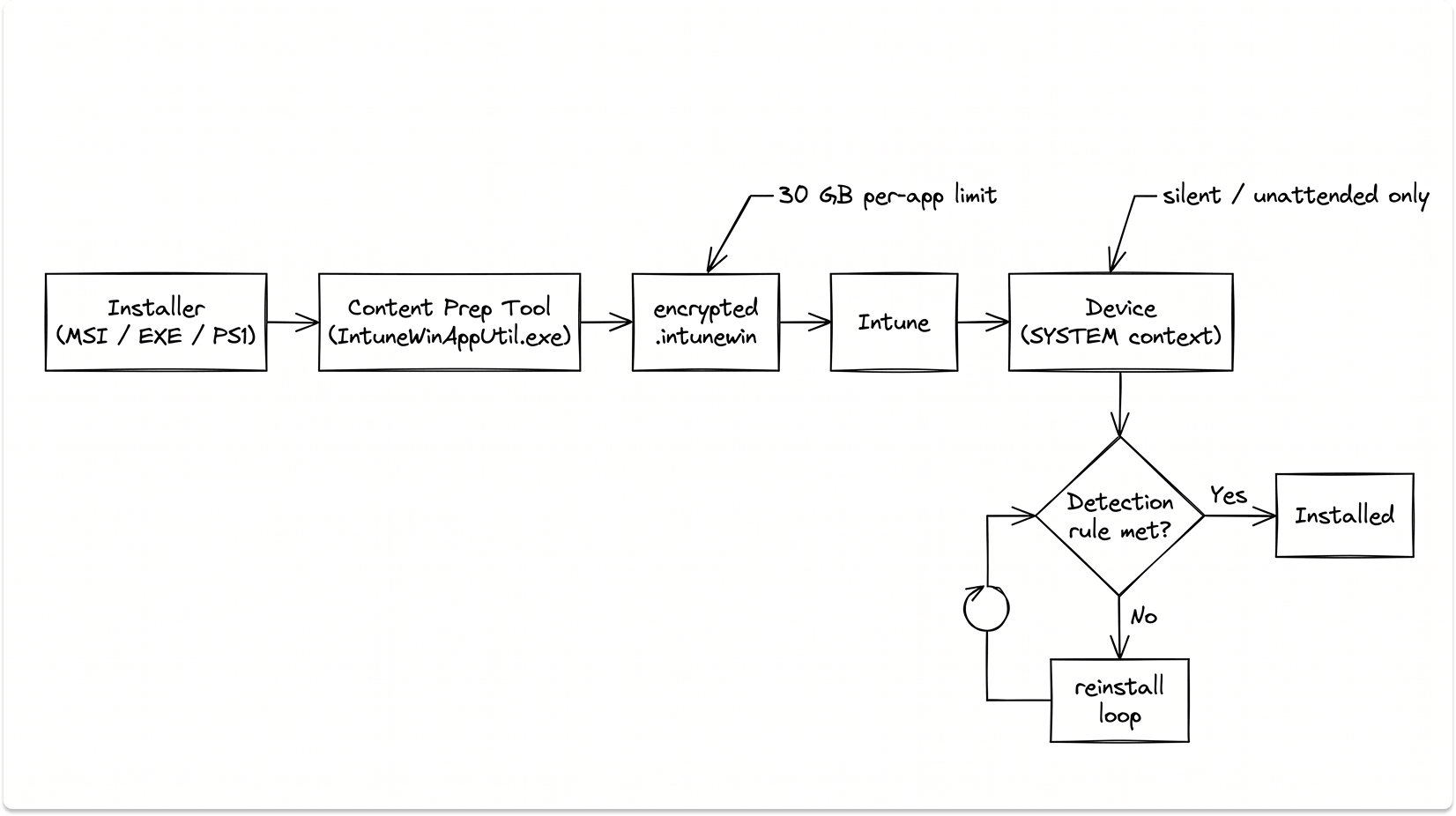
Detection rules work the way they did in ConfigMgr: MSI product code, file presence or version, registry value, or a custom PowerShell script that signals success by exit code and standard output.
Requirement rules gate on OS version and architecture and can run their own file, registry, or script checks. Dependencies and supersedence are both supported, the latter being how you handle in-place upgrades.
A specific Autopilot caution: during classic Autopilot enrollment, mixing Win32 and line-of-business (LOB) app types can fail because both can hit the Windows installer service at once. Standardize on Win32.
Dumping a pile of MSIs in as LOB apps is one of the faster ways to wreck an Autopilot deployment. Package Microsoft 365 Apps through the Office Deployment Tool as a Win32 app so dependencies resolve cleanly.
For organizations on the Intune Suite, or on Microsoft 365 E5 after the December 2025 licensing change, Enterprise App Management adds a catalog of Microsoft-hosted, prepackaged Win32 apps with install logic, detection, and return codes already filled in, and they update themselves through supersedence. The limits worth knowing: Windows and 64-bit only, and no running-application detection.
What does not translate at all: task sequences, App-V chains, complex ordered installs, and anything that needs on-prem infrastructure present at install time. Treat the move as a chance to rationalize. Inventory every application and package with an active deployment, freeze new ConfigMgr content creation, and sort the list into migrate, replace, and retire. A clean catalog in Intune beats a faithful copy of fifteen years of accumulated cruft.
OS Deployment Is Gone: Autopilot and the Reset-and-Re-Enroll Reality
State this plainly to anyone who still thinks in imaging terms: Intune has no bare-metal imaging, no PXE boot, and no reference-image task sequences. Windows Autopilot configures an existing Windows installation after first boot. It is a provisioning service, not an imaging system.
Classic Autopilot registers devices by hardware hash, runs the Enrollment Status Page (ESP) during setup, and supports hybrid join.
Autopilot Device Preparation, the newer model, is a re-architecture. It drops hardware-hash registration in favor of Enrollment Time Grouping, where the device is added to a designated Entra security group at the moment of enrollment.
That group has rules you must respect or provisioning breaks: the Intune Provisioning Client service principal must be its owner, it must not be role-assignable, and it must not be converted from static to dynamic.
Device Preparation uses its own status page rather than the ESP; if you see the ESP, you are not running Device Preparation. It is user-driven only today, with no hybrid join and no pre-provisioning, and it supports up to 25 apps during provisioning.
Microsoft's own guidance is explicit that deploying new devices as hybrid join, including through Autopilot, is not recommended. If you run hybrid Autopilot anyway, you depend on the Intune Connector for Active Directory, and connector builds older than 6.2501.2000.5 are deprecated and will not process enrollment requests.
Expect by-design duplicate Entra device objects, OOBE update-scan timeouts, and a hard requirement for line of sight to a domain controller during provisioning.
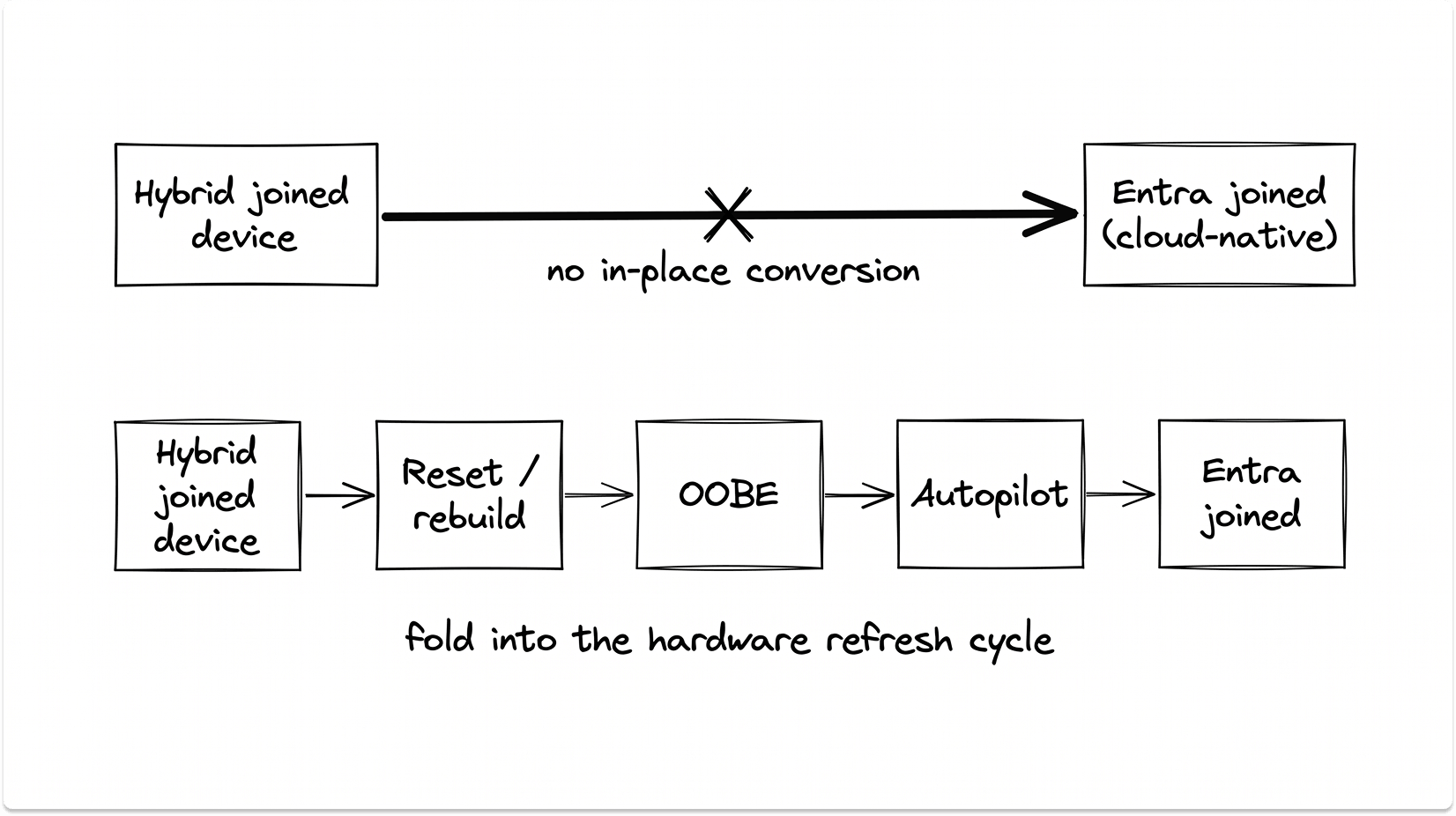
This is where the reset-and-re-enroll reality bites. Existing hybrid joined ConfigMgr devices do not convert to cloud-native in place. They are reset and re-enrolled through Autopilot, which is why the smart move is to fold the transition into your hardware refresh cycle and let new and repurposed devices come up cloud-native. For workgroup and non-domain fleets there is no automated path at all; it is reset and enroll.
Translating Group Policy: Group Policy Analytics and What It Cannot Map
Group Policy Analytics, in the Intune admin center, imports your GPO XML exports and compares every setting against the cloud policy catalog. It returns an MDM support percentage per GPO and sorts each setting into ready, not supported, deprecated, or unknown. For the ready settings, a one-click migrate creates a pre-populated Settings Catalog profile.
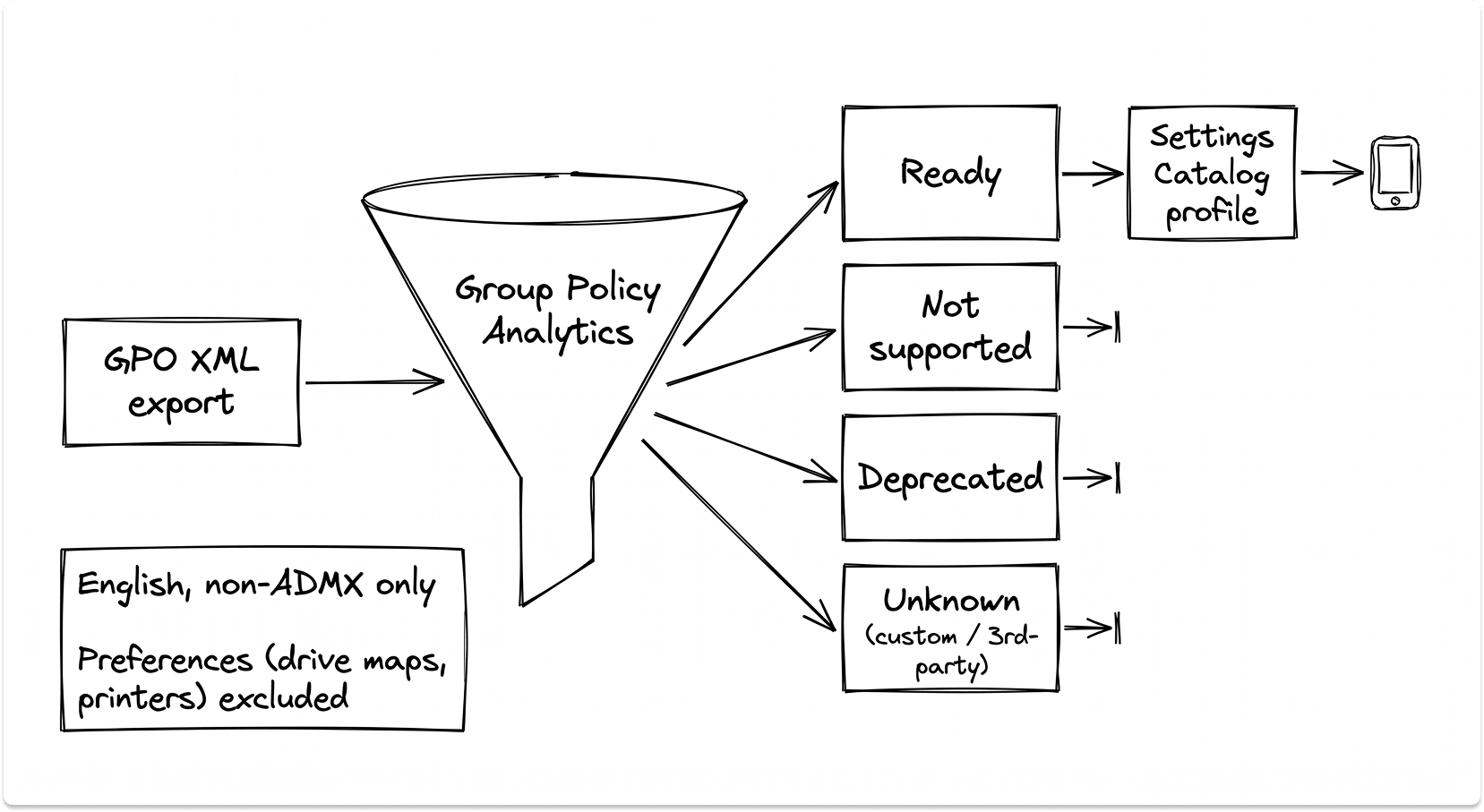
Know its boundaries. It analyzes non-ADMX settings and reads them in English, so a non-English import skews the percentage. More importantly, it does not handle Group Policy Preferences. Drive mappings, printer deployment, scheduled tasks, and shortcuts do not come across, and you replace them with ADMX ingestion, PowerShell scripts, Remediations, or Universal Print.
The conflict mechanic matters on hybrid joined devices, where both GPO and Intune can target the same setting. There is no guarantee which one wins. Set MDMWinsOverGP through the Settings Catalog to force the Intune policy to take precedence, but note it governs only Policy CSP settings; Defender and BitLocker duplicates still have to be cleaned up by hand.
The advice that separates a clean migration from a painful one: do not lift and shift years of accumulated Group Policy debt. Start from Intune Security Baselines as your foundation, get BitLocker, Defender, and firewall settled first, and layer user-facing settings on afterward. Baselines lag Microsoft's release cycle and can feel rigid, so treat them as a floor to build on, not the whole house.
Patch Management After the Software Update Point
The model shifts from WSUS plus a Software Update Point to the Windows Update for Business engine, driven either by Intune update rings you build yourself or fully offloaded to Windows Autopatch.
Autopatch slices devices into Test, First, Fast, and Broad rings, orchestrates the rollout, and uses telemetry to pause or roll back a bad update automatically.
Autopatch has a co-management dependency. The Windows Update, Office Click-to-Run, and Device Configuration workloads need to be on Intune, and the ConfigMgr client's Software Updates setting must be off, because Autopatch needs full control of the update channel. Allow 24 to 48 hours for a workload switch to take full effect.
The classic double-management hazard here is Dual Scan, where both ConfigMgr and Windows Update for Business can drive the Windows Update Agent and the scan source becomes ambiguous, producing unpredictable patching. Resolve it deliberately rather than discovering it in production.
One real gap to plan around: neither Windows Update for Business nor Autopatch patches third-party applications. Targeting third-party updates from both ConfigMgr and Intune will not technically conflict, but you lose any clear sense of which platform installed what.
This is the gap the ecosystem fills, with tools like Patch My PC and Scappman, and partly with self-updating Enterprise App Catalog apps. Driver and firmware servicing moves to Windows Update for Business driver update policies, replacing ConfigMgr driver packages.
Identity Is the Real Migration
Endpoint management migrations stall on identity more often than on tooling. Take a clear position early: the target state is Entra join, cloud-native, and hybrid join is a temporary bridge you keep only for named on-prem dependencies. Every week you treat hybrid join as the destination is a week you delay the actual migration.
The bridge that makes cloud-native viable for most enterprises is Cloud Kerberos Trust. It lets an Entra joined device obtain a Kerberos ticket for on-prem resources like file shares and legacy web apps without deploying a certificate infrastructure or ADFS.
Microsoft Entra Kerberos places a read-only-domain-controller-like object in Active Directory, and Entra issues a partial ticket that a 2016-or-later domain controller exchanges for a full one. It needs recent Windows 10 or 11 builds, 2016+ domain controllers, Entra Connect, and Windows Hello for Business configured.
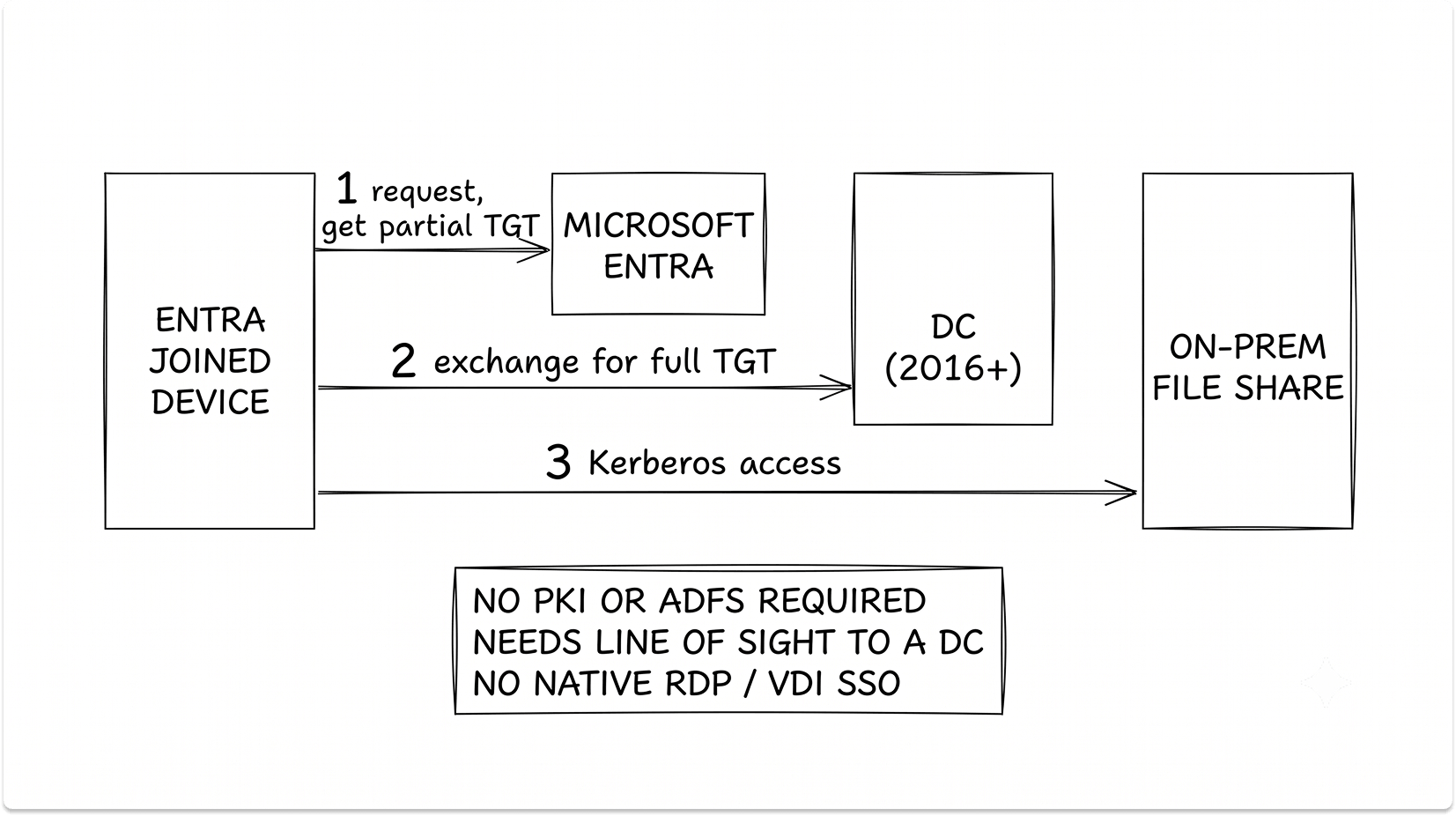
Its limits are worth stating up front. There is no native single sign-on for RDP, RemoteApp, or VDI, so users still get prompted there. The device needs network line of sight to a domain controller for the first on-prem sign-on, which means VPN when off-network. Members of privileged Active Directory groups do not receive tickets.
Cloud Kerberos Trust is also the recommended deployment model for Windows Hello for Business. Watch the scoping trap: a Windows Hello policy scoped to All Users or All Devices can lock out anyone who dismisses the PIN setup prompt. Scope it to a pilot group first and widen deliberately.
Finally, Windows LAPS backs up local administrator passwords to Entra ID, replacing on-prem LAPS and any manual local-admin handling, and it is part of getting cloud-native devices to a secure baseline. Because the configuration workloads depend on identity being settled, sequence the identity work before you move Device Configuration and Endpoint Protection.
What Intune Still Cannot Do in 2026
Credibility with a skeptical CIO or CISO depends on not overselling the destination. Here is the honest parity picture, separating what has closed from what has not.
Closed in 2024 to 2026. Enhanced hardware inventory is now generally available, collected through the Properties Catalog. App Inventory has begun replacing the old Discovered Apps view on Windows. Autopilot Device Preparation modernized provisioning. Enterprise App Management brought a managed app catalog. Proactive Remediations was renamed Remediations and gained an on-demand run action. If your objection to Intune is based on any of these, it is out of date.
Still no good equivalent. Intune does not manage Windows Server, with no plans to. Air-gapped and no-internet environments are disqualified by Intune's cloud dependency. There is no equivalent to complex OS deployment task sequences or PXE. Deep software metering and SSRS-grade custom historical reporting remain a ConfigMgr strength. And device targeting is meaningfully weaker: Intune cannot easily target by installed software or software version, by registry or WMI conditions, by co-managed state, by the absence of an application, or by the logged-on or primary user, all of which dynamic ConfigMgr collections do natively.
On real-time control, CMPivot queries live across a whole collection, can build collections from results, and renders charts. Intune Device Query runs KQL against a single device, returns no charts, and caps export at 500 rows. Multi-device querying exists through Advanced Analytics, but the daily real-time operational query habit that ConfigMgr admins rely on does not transfer cleanly.
The decision rule falls out of this directly. If you depend on server management, air-gapped operation, OS deployment task sequences, or deep metering, plan to co-manage indefinitely. If your estate is mostly internet-connected Windows clients running packageable apps, drive toward cloud-native.
The Failure Modes That Surface During Migration
These are the things that go wrong in the field, with the mechanism and the fix for each. Most are absent from generic step-by-step guides, and most show up in practitioner forums precisely because they are not in the official happy path.
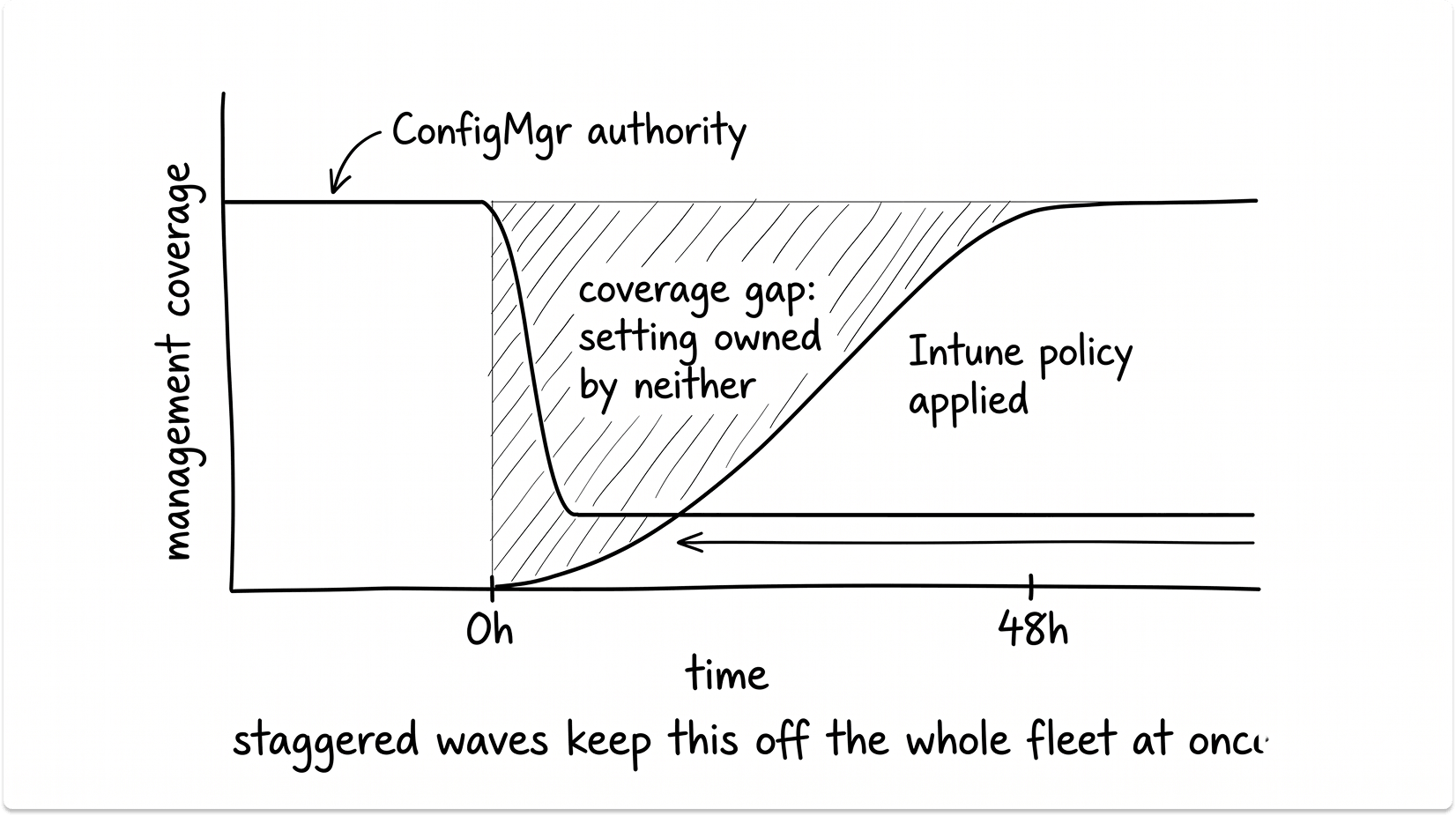
The coverage gap on freshly switched devices. For 24 to 48 hours after a workload switch, a device can sit in a window where the old authority has stepped back and the new policy has not fully flowed, so a setting is effectively managed by neither. The fix is a daily reconciliation report that cross-references device inventory against policy and protection assignment, plus staggered waves so the gap never hits the whole fleet at once.
ESP and Device Preparation timeouts. Too many or too-large apps in the blocking phase stall provisioning past the timeout. Cap blocking apps to the genuine essentials, keep them at or under ten, package them as Win32, and set a realistic timeout.
Hybrid join Autopilot duplicate objects and timeouts. Caused by an outdated Intune Connector and by lost line of sight to a domain controller. Update the connector to 6.2501.2000.5 or later and confirm domain controller reachability during provisioning. Better, stop deploying new devices as hybrid join.
Policy tattooing. Settings stay stuck after the policy is unassigned. Test on disposable devices, plan registry cleanup, and accept that a rebuild is sometimes the faster path.
Conditional Access and Windows Hello lockouts. A policy scoped too broadly on first rollout locks people out. Scope to pilot groups, never to All Users on the first pass.
Win32 detection-rule failures. A wrong detection rule makes an app reinstall in a loop or report failed. Validate the detection logic on a test device before broad assignment.
System-context script breakage. Scripts that assume a user context, a mapped drive, or an on-prem path fail under SYSTEM. Rewrite them to be self-contained.
Decommissioning ConfigMgr: The End-State Runbook
Do not pull the plug until every gate is green.
Validation gates. All targeted workloads are on Intune, not Pilot. Every required app is deployed and its uninstall has been tested. Conditional Access works. Updates flow through Windows Update for Business or Autopatch. Inventory and reporting needs are met by Intune Device Inventory, App Inventory, and Remediations. No line-of-business app is still hard-wired to ConfigMgr or to on-prem at install time. Your Intune configuration is backed up.
Set the go-live gate per device, not per project. A device is ready to leave ConfigMgr's authority only after the equivalent Intune workload is verified working on it in production. Not after a clean enrollment, not after a successful app smoke test. After the actual workload is confirmed.
Client uninstall. Run ccmsetup.exe /uninstall and confirm a return code of 0 in ccmsetup.log. When you are moving a device from co-managed to native Intune, plan for residue cleanup, because leftover services, CCM folders, SMS certificates, and registry entries can keep the device thinking it is still co-managed. Deleting the device record from the console does not uninstall the client, and Heartbeat Discovery will simply recreate the record if the client is still talking.
Infrastructure teardown, bottom up. Remove secondary sites, then primary sites, then the central administration site. Remove the Cloud Management Gateway, the cloud distribution point, and the cloud management connection point role. Delete the Entra app registrations by hand, as they are not always removed automatically.
The reversibility boundary. Workloads are reversible only while the client and the infrastructure exist. The moment the site is gone, rollback is gone with it. This is why the runbook validates everything before teardown rather than after.
Is SCCM Dead?
No. Microsoft continues to support Configuration Manager with a focus on security, stability, and long-term support, while directing new investment and innovation to Intune.
The product is moving to an annual release cadence beginning with version 2609 in September 2026, and recent releases have centered on security and quality rather than new features. The practical reading is that ConfigMgr is in stable, security-focused maintenance, Intune is where the platform is going, and cloud attach is the supported bridge between them. For some environments, co-management is not a phase. It is the destination.
Treat the Migration as Three Parallel Workstreams
Identity, workloads, and applications run on the same calendar, but they are not the same project, and the teams that struggle are the ones that treat identity or apps as something to sort out once the migration is underway. Sequence identity first because the configuration workloads depend on it. Rationalize applications early because repackaging is the most underestimated line item in the plan. Move workloads in the proven order, one at a time, with a test gate before each.
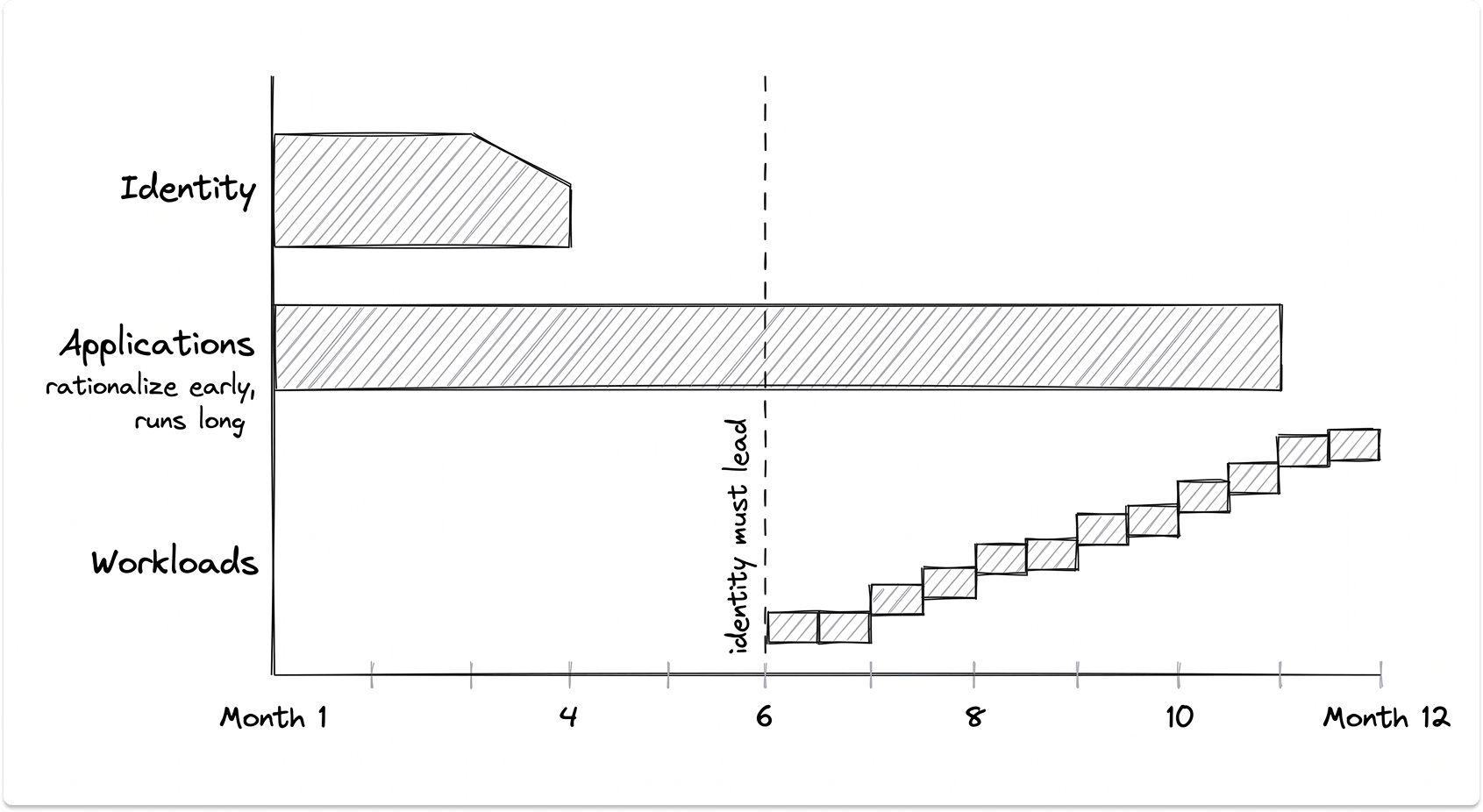
The reconciliation report and the validation gates find the coverage gaps before they become incidents. The alternative is finding them the first time a restore, an audit, or a locked-out executive forces the question. One of those is a planning exercise. The other is an outage.
Also read: How to migrate between Veeam and Rubrik
Find Endpoint Migration Vendors Anonymously
Browse pre-vetted endpoint management and migration vendors on TechnologyMatch. Filter for your stack, whether that's co-management tooling, app packaging, or a full SCCM-to-Intune migration partner, and match with vendors who fit. Start conversations when you're ready. And it's free.
FAQ
What is the difference between tenant attach and co-management?
Tenant attach syncs ConfigMgr devices to the Intune admin center for visibility and a few remote actions, with no impact on the device and no enrollment. Co-management enrolls the device in Intune alongside the ConfigMgr client and lets you assign management authority for each of seven workloads to one side or the other. Tenant attach is visibility; co-management is migration.
Do I need a Cloud Management Gateway for co-management?
No. A CMG is only needed when the ConfigMgr client has to reach internet-based devices that never connect to the corporate network. Co-management itself does not require one.
Can I switch a workload back to ConfigMgr after moving it to Intune?
Yes, as long as the ConfigMgr client and infrastructure still exist. The one caveat is that Windows and Office versions stay at whatever Intune installed; switching back does not downgrade them. Once you uninstall the client and remove the site, rollback is no longer possible.
How do I migrate task sequences and imaging to Intune?
You do not. Intune has no PXE, no bare-metal imaging, and no reference-image task sequences. Windows Autopilot replaces imaging by configuring an existing Windows installation after first boot. Existing hybrid joined devices are reset and re-enrolled through Autopilot rather than converted in place.
Can Intune manage Windows Server?
No, and there are no plans for it to. Server management remains a ConfigMgr responsibility, which is one of the main reasons many organizations co-manage indefinitely rather than fully retiring ConfigMgr.
How do I migrate non-domain or workgroup devices?
There is no automated path. Workgroup devices are reset and enrolled through Autopilot as cloud-native Entra joined devices.
Is SCCM being discontinued?
No. Microsoft continues to support Configuration Manager and is moving it to an annual release cadence starting with version 2609 in September 2026. New investment goes to Intune, but ConfigMgr remains supported, and permanent co-management is a valid end state.