



Windows Server 2016 and 2012 End of Support: What Should You Do?
Windows Server 2016 support ends Jan 12, 2027 and 2012 R2 ESU ends Oct 13, 2026. What running unsupported actually costs, whether ESU is worth it, and how to decide in-house vs. a migration partner.

If you still run Windows Server 2012 R2 or 2016 in production, you already know the deadline exists. Our technical guide on planning a Windows Server upgrade or move to Azure covers the mechanics.
This is about the decision that comes before the mechanics: what waiting costs you, which path fits which workload, and whether you run this in-house or bring in a partner.
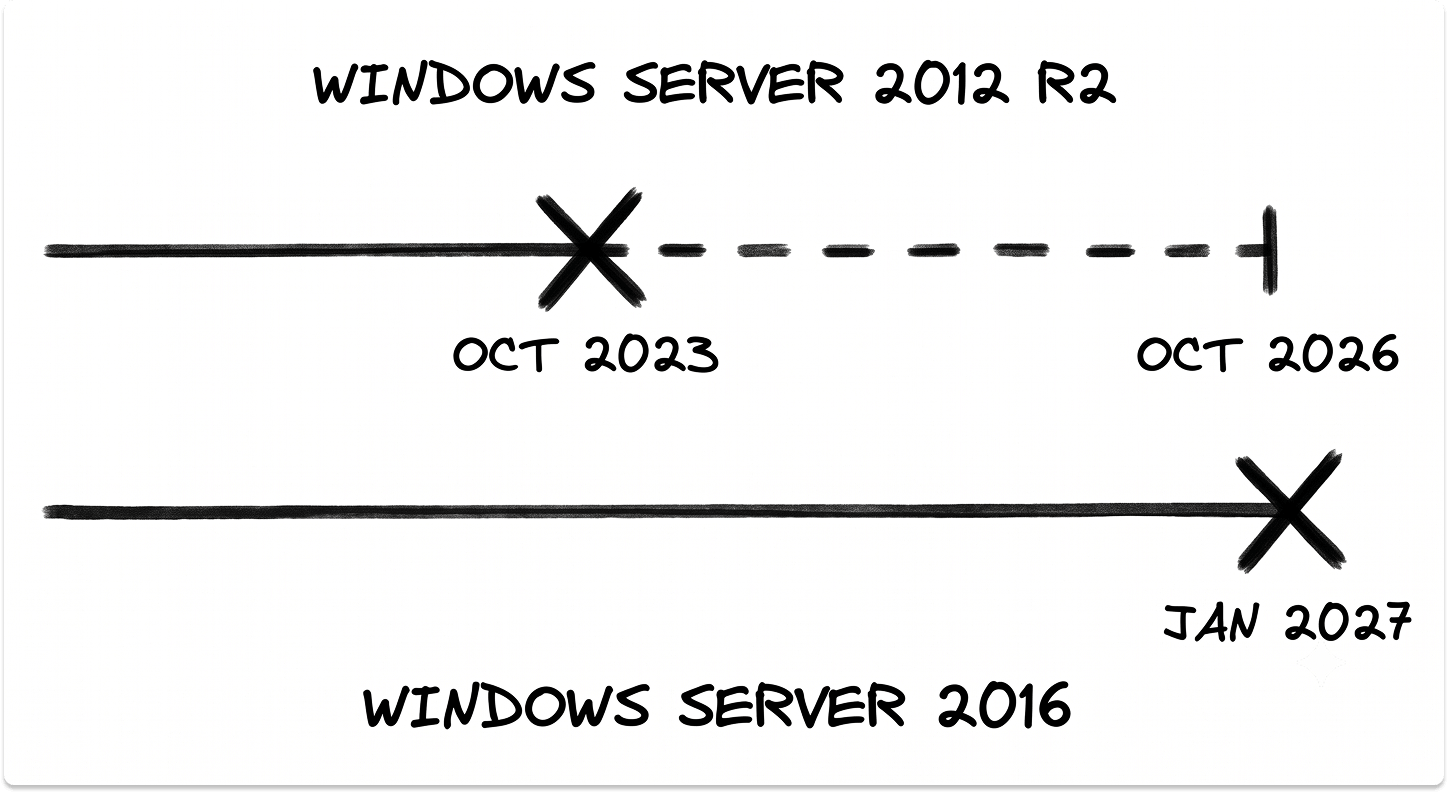
Your Migration Timeline
Two dates matter more than anything else on this topic, and they are close.
Microsoft confirms that extended support for Windows Server 2012 and 2012 R2 ended in October 2023, with Extended Security Updates running out on October 13, 2026 for both Azure-hosted and on-premises servers. Windows Server 2016 reaches end of extended support on January 12, 2027.
If you are on 2012 R2, you are already past extended support and burning the last year of a paid bridge. If you are on 2016, you have a window you can still plan around, but not for much longer.
What Happens If You Don't Upgrade Windows Server
An unsupported server does not stop working on the deadline. That is what makes it dangerous. It keeps running, so the risk stays invisible until something forces it into view.
After extended support ends, Microsoft stops issuing security updates. Extended Security Updates cover only Critical and Important security fixes, and they explicitly exclude new features, non-security hotfixes, and design changes.
So an unsupported box accumulates unpatched vulnerabilities with no vendor path to close them and no support line to call when it breaks.
Three exposures grow the longer the server stays in production:
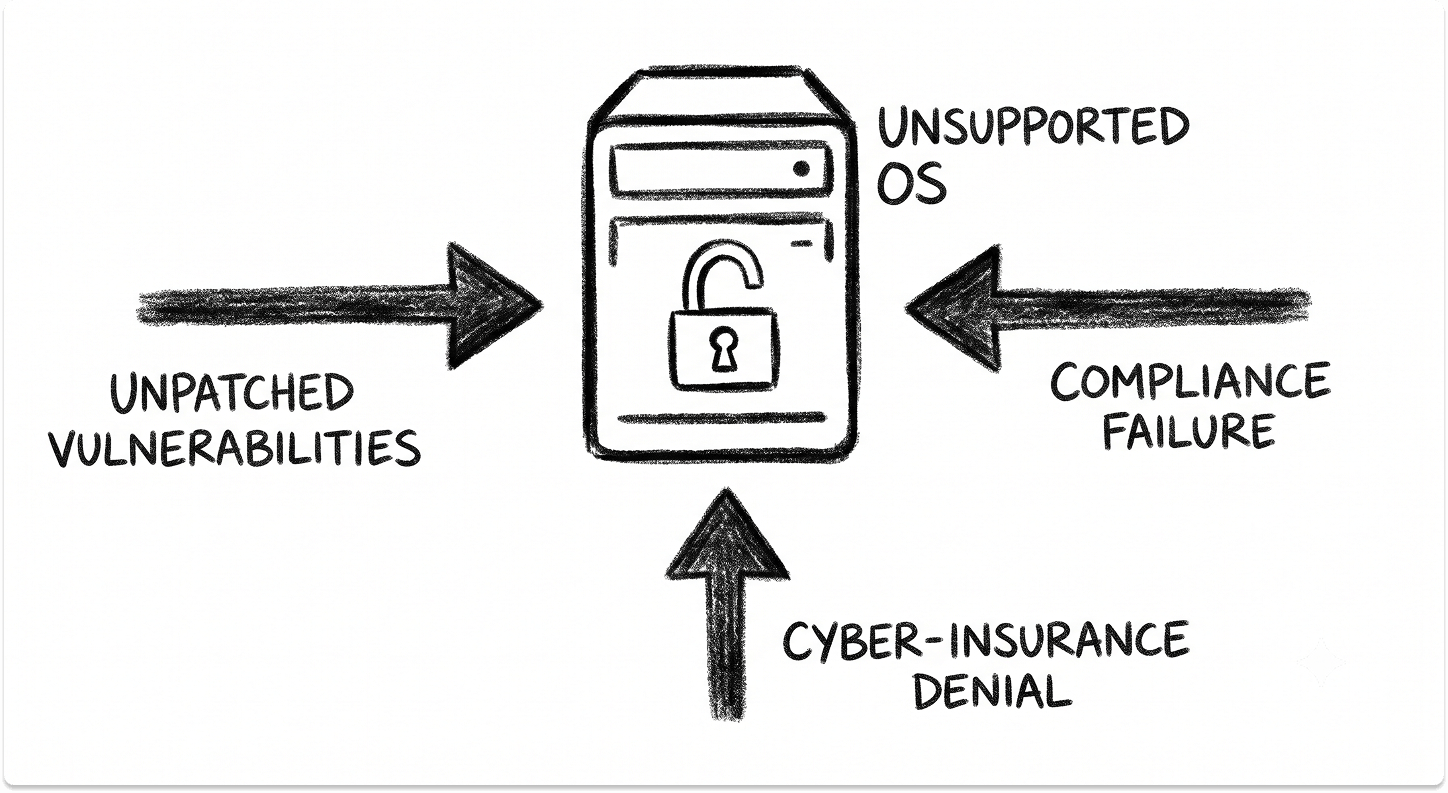
There is a fourth, quieter exposure. New software and security agents progressively drop support for the old OS. At some point a business application you need simply will not certify or install on Server 2016, and the upgrade you deferred becomes a blocker to work that has to get done.
The True Cost of Running Unsupported Windows Server
Waiting is not free, and it does not hold steady. It compounds in two ways.
The ESU meter escalates. On-premises Extended Security Updates are priced as a percentage of your full license cost, and that percentage climbs each year.
Multiple sources covering the program describe the pattern as roughly 75% in year one, 100% in year two, and 125% in year three, a structure echoed across reseller and MSP guidance.
Each renewal costs more and buys less, since you are paying an increasing premium for Critical and Important patches only, with no new capability underneath.
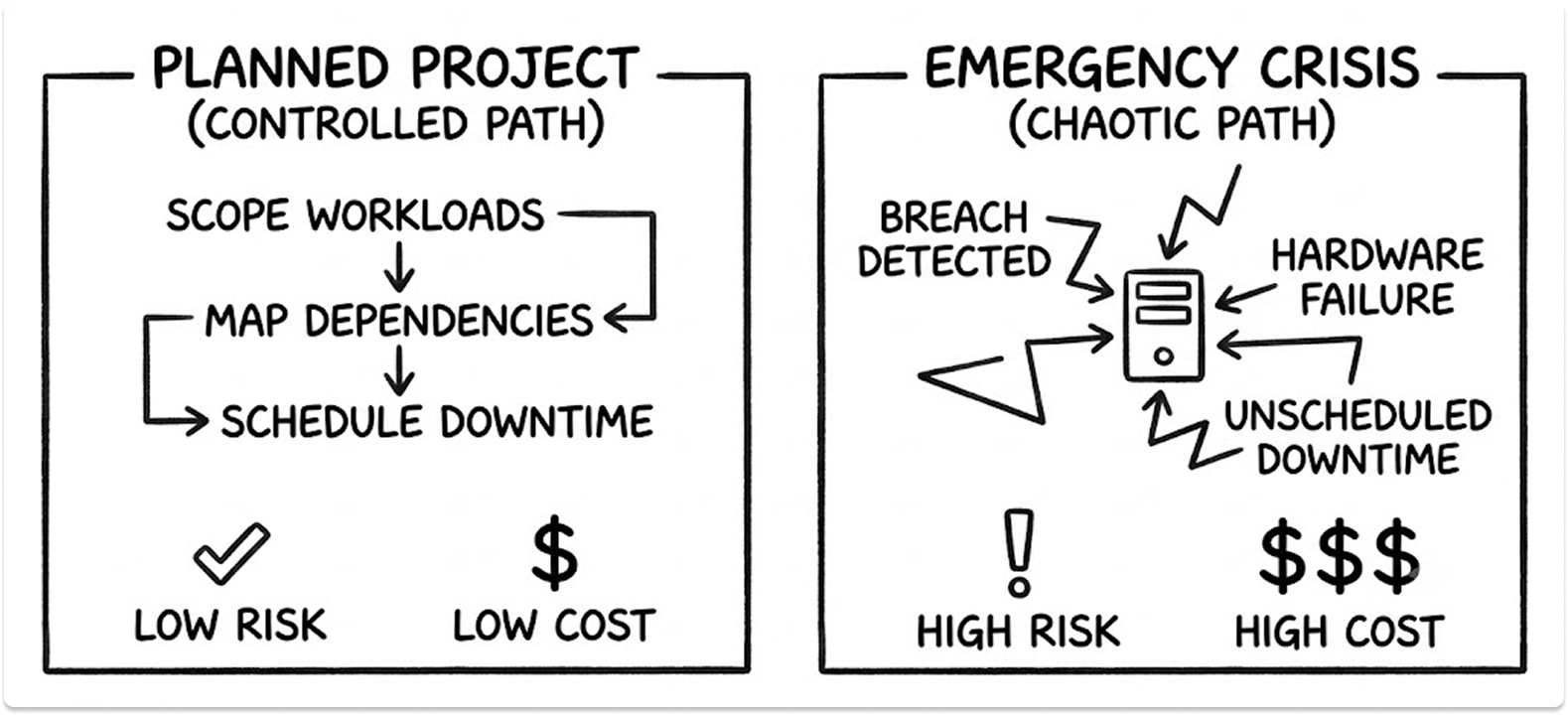
The emergency premium is the real cost. The scenario that ends most of these delays is not a budget review. It is an unpatched server that gets breached, or aging hardware that fails with no vendor left to restore it, taking every system that depends on it down with it.
At that point the migration still happens. It just happens at 2 a.m., under incident conditions, at a multiple of the planned cost, on the attacker's or the hardware's timeline instead of yours.
That is the difference between a project and a crisis. The technical work is nearly identical. The cost, the risk, and the control are not.
Is Windows Server ESU Worth It? When to Buy Extended Security Updates vs. Migrate
ESU has a legitimate use. It buys clean time when you have a short, funded runway to a known target, a legacy application mid-remediation, or a workload already scheduled to move inside the ESU window. Used that way, it is a bridge.
It becomes money burned when it substitutes for a plan. Because the on-prem cost escalates and the compatibility and audit gaps keep widening underneath, renewing ESU year over year pays a rising bill to stand still.
There is one lever that changes the math. Extended Security Updates are free of charge for servers hosted in Azure, and can be enabled on-premises or across clouds through Azure Arc. If your destination is Azure anyway, paying for on-prem ESU is often paying twice.
Migrating SQL Server to an Azure VM carries the same benefit, adding three years of Windows Server critical updates at no extra charge.
Windows Server Upgrade Paths
If you are going to move, move somewhere with runway. Jumping from 2012 R2 to 2016, or even landing on 2019, spends the migration effort on a platform that is already aging.
These dates come from Microsoft's published lifecycle, tracked here. Target 2022 or 2025, or move the workload to Azure. Anything else buys you a shorter clock and a repeat of this exact conversation in a few years.
Windows Server Migration Options by Workload
There is no single right answer for the whole estate. Microsoft defines four distinct migration methods, and they are not interchangeable.
The in-place path is the fastest when it applies. Since Windows Server 2025, non-clustered systems can upgrade up to four versions at once, so a standalone 2012 R2 or 2016 box can go directly to 2025. But in-place carries hard restrictions that break real migrations if you ignore them:
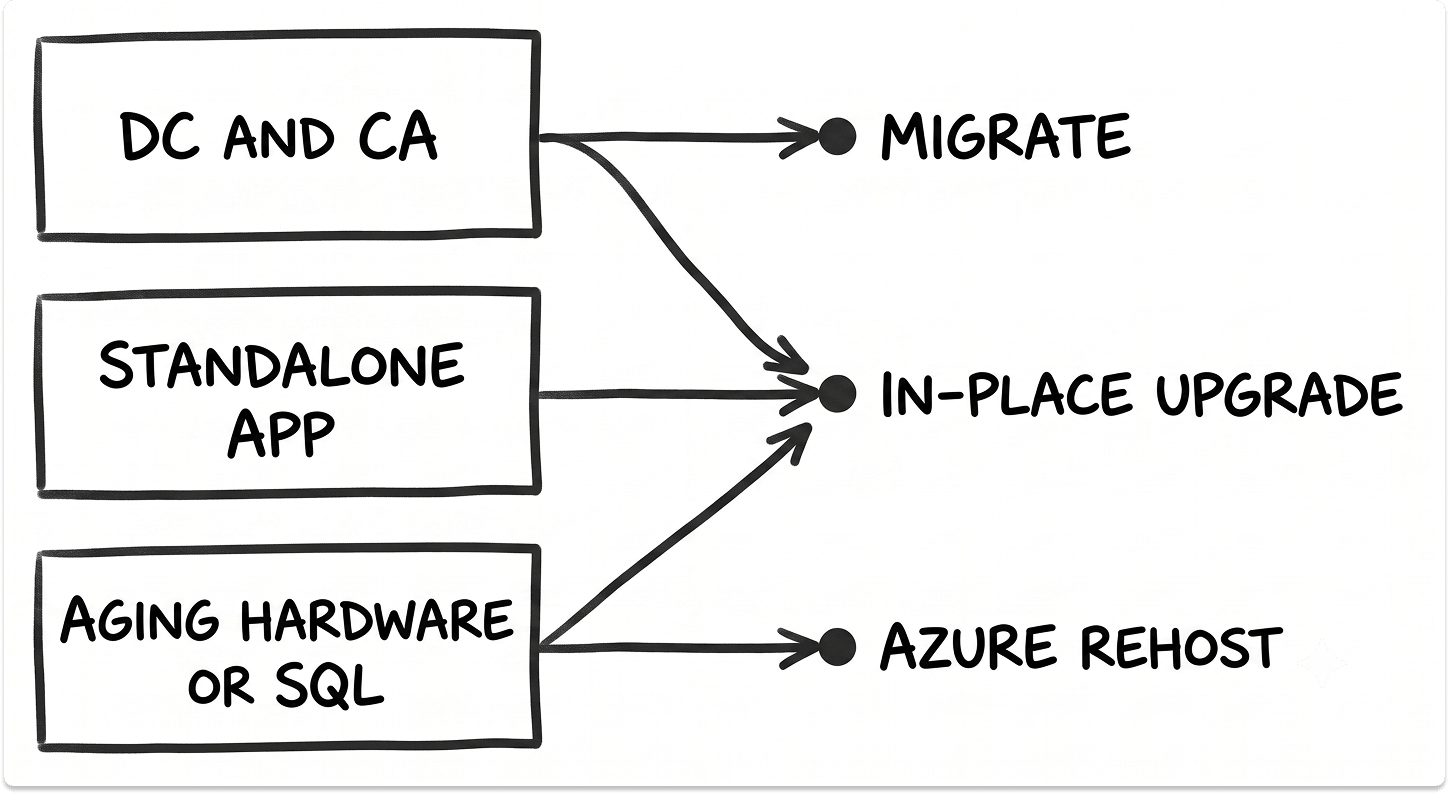
Mapped to real workloads, the defaults look like this:
The mechanics of each of these paths, from Azure Migrate to FSMO transfers, are covered step by step in the Windows Server upgrade and Azure migration guide. If part of this estate is identity infrastructure, our guide on migrating from on-prem Active Directory to Microsoft Entra ID covers the identity side in depth.
Should You Upgrade Windows Server In-House or Hire a Migration Partner?
Run it in-house when the conditions line up: standalone servers, supported in-place paths, staff who have done Windows Server migrations recently, downtime tolerance that fits a maintenance window, and a timeline with real slack before the deadline.
Bring in a partner when any of these are true:
A good migration partner does the work in-house teams under-scope: full dependency mapping before touching anything, a documented rollback plan for every workload, and a per-workload path decision instead of a blanket approach.
How to Choose a Windows Server Migration Partner
Not every partner is worth hiring. Evaluate on the parts that protect you when something goes wrong.
The same discipline you would apply to any technology purchase applies here. Our IT vendor selection criteria and checklist and best practices for the vendor selection process both apply directly to choosing a migration partner.
Windows Server End-of-Support Checklist
You do not need the whole plan today. You need to convert an open-ended risk into a scoped project.
Find a Windows Server Migration Partner Before the Deadline
A server that no one migrated gets breached, or the aging hardware under it fails with no support contract left, and suddenly the systems your business runs on are down with no clear way back. The migration you kept deferring still happens. It just happens as emergency recovery, at a premium, on the worst possible night.
The calmer version starts now, while the servers are still running and the choice is still yours. You scope the estate, decide the path per workload, and line up help for the parts that carry real risk.
That last step is where finding the right partner matters, and where it usually gets slow. TechnologyMatch connects you with pre-vetted Windows Server and cloud migration vendors matched to your workloads, timeline, and compliance requirements, so you can compare options and start conversations without weeks of cold research. Match with vendors who fit your situation, and reach out when you're ready.
Get Help with Your Migration
TechnologyMatch lets you find pre-vetted Windows Server and cloud migration vendors based on workloads, compliance requirements, and deadline, so you skip weeks of cold research and start conversations with vendors who actually fit. Match with the right ones, and reach out when you're ready.
FAQ
What happens if we don't upgrade Windows Server 2016?
It keeps running after January 12, 2027, but Microsoft stops issuing security updates. Newly disclosed vulnerabilities stay open, you fall out of compliance under frameworks like PCI DSS and HIPAA, cyber-insurance coverage weakens, and over time new software stops supporting the OS. The only way to keep receiving patches is paid Extended Security Updates, which are a temporary bridge, not a fix.
Is Windows Server ESU worth it, or should we just migrate?
ESU is worth it as a short, funded bridge to a known migration date. It is not worth it as a substitute for a plan, because on-prem pricing escalates each year and buys only Critical and Important patches. If your destination is Azure, ESU is free on Azure VMs and via Azure Arc, which often makes paying for on-prem ESU a duplicate cost.
Can we upgrade Windows Server 2016 straight to 2025?
Yes, on standalone, non-clustered hardware. Since Windows Server 2025, non-clustered systems can upgrade up to four versions in place, so 2012 R2 and 2016 can go directly to 2025. Domain controllers, clusters, and certificate authorities are exceptions and should be migrated rather than upgraded in place.
Should we run the migration in-house or hire a partner?
Run it in-house when you have standalone servers, supported in-place paths, recent migration experience, and timeline slack. Bring in a partner when the estate includes domain controllers, clusters, CAs, or SQL, when dependencies are unclear, when downtime tolerance is low, or when the deadline is closer than your internal runway.
How much does running an unsupported Windows Server actually cost?
Beyond the escalating ESU fees (roughly 75%, then 100%, then 125% of license cost per year), the larger cost is the emergency-migration premium: a breach or hardware failure forces the same migration under incident conditions, at a multiple of the planned cost, plus the compliance and cyber-insurance exposure that comes with running unsupported.


