How to Migrate Between Google Workspace and Microsoft 365 as an IT Leader
Migrate between Google Workspace and Microsoft 365: a technical playbook for IT leaders covering DNS, mail, Drive, throttling and cutover.
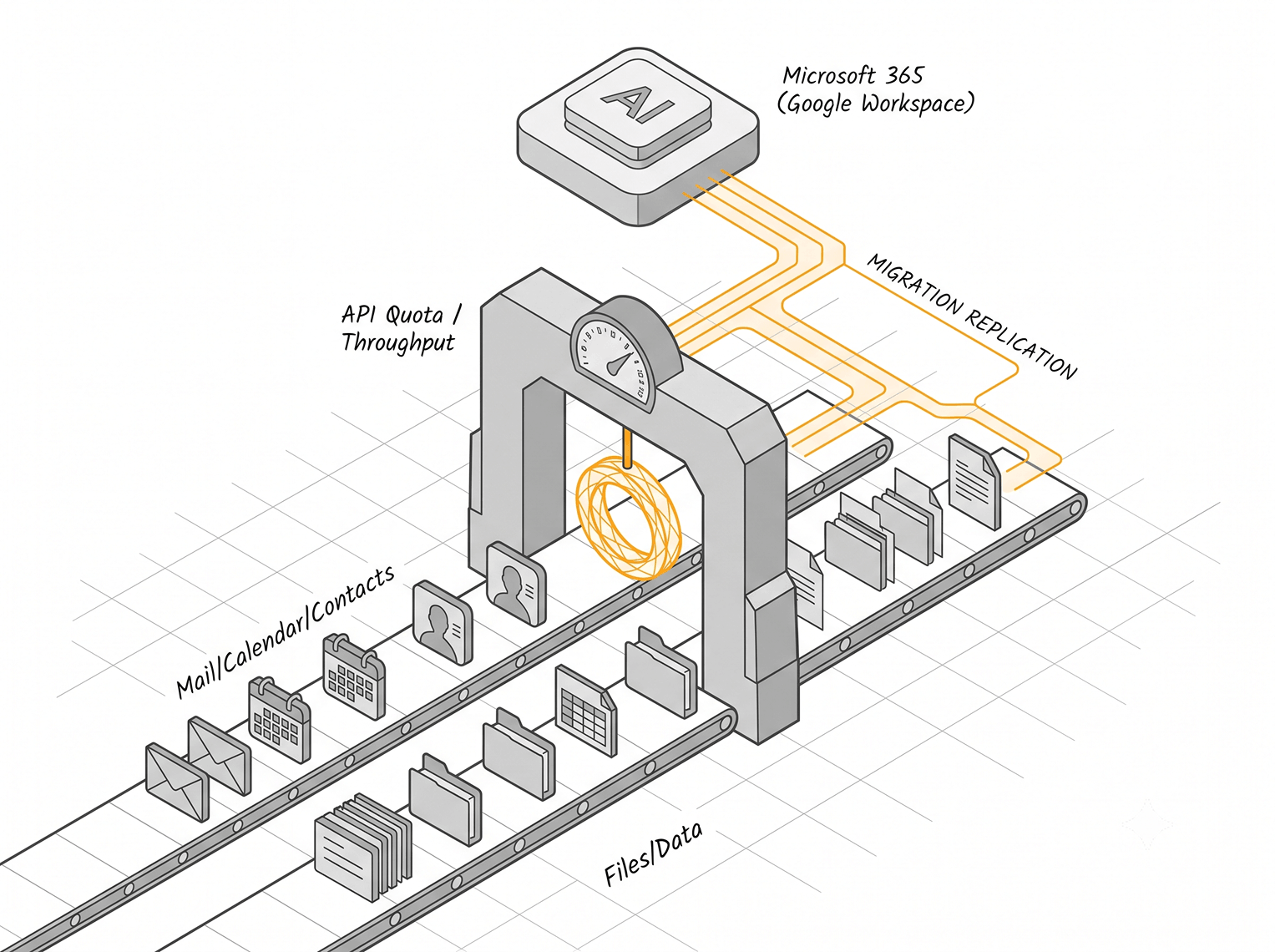
A migration between Google Workspace and Microsoft 365 is two projects running in parallel. One moves mail, calendars, and contacts. The other moves files. They use different tools, hit different rate limits, and fail in different ways, so treating them as one job is the first mistake to avoid.
Throughput, not bandwidth, decides your timeline. Both platforms meter API requests hard, and the migration engine spends most of its runtime waiting on quota rather than moving bytes. Everything below is sequenced around that fact.
The two directions are not symmetric
The direction you are moving changes which tools exist and how mature they are. Going from Google Workspace to Microsoft 365, you get a first-party, OAuth-based batch tool built directly into the Exchange admin center, plus Microsoft's Migration Manager for files. That path is stable and well documented.
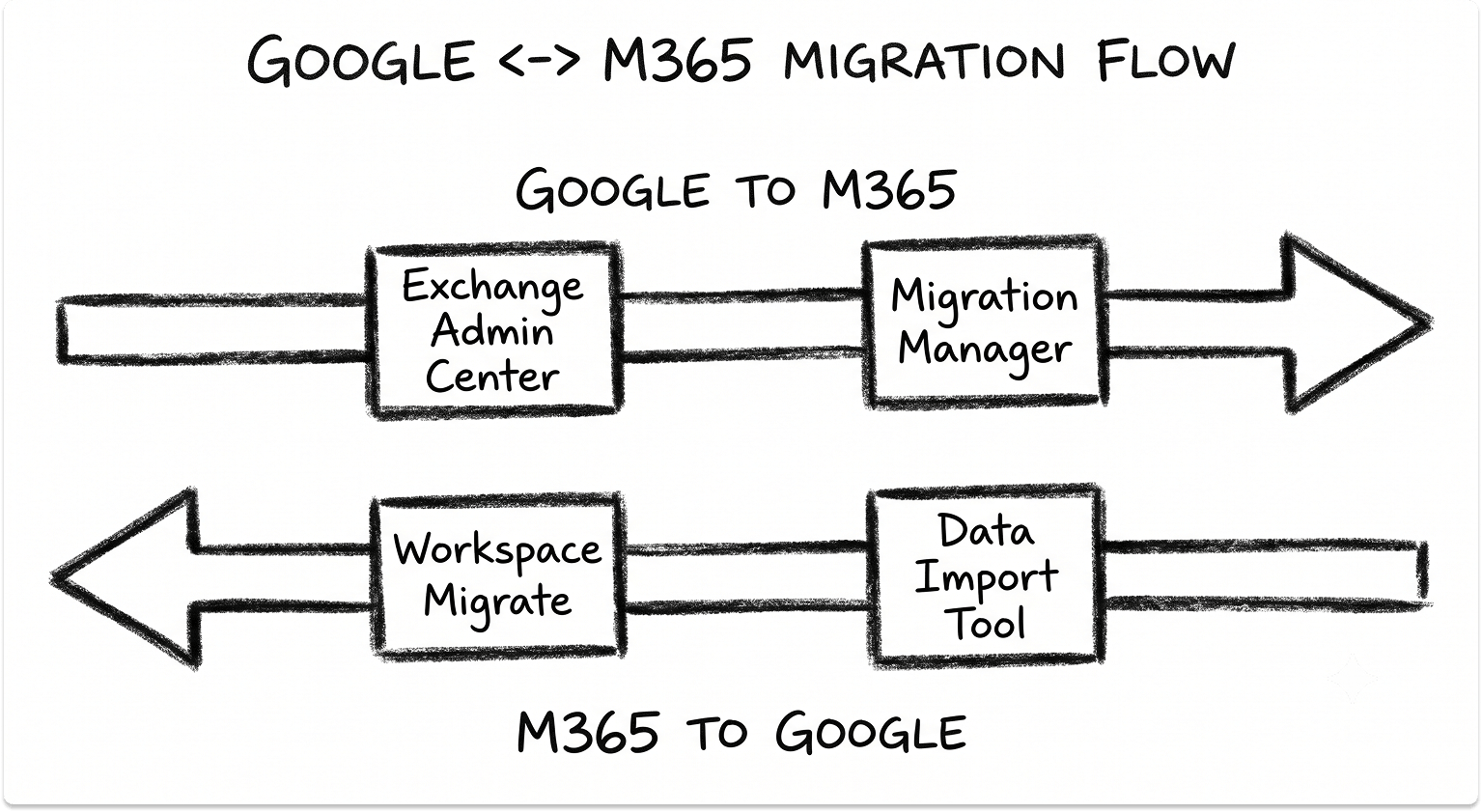
Going the other way is messier. Microsoft 365 to Google Workspace runs through Google's data import tool in the Admin console for mail, calendar, and contacts, and Google Workspace Migrate for files. This side is mid-transition.
Google Workspace Migrate for Exchange Online will no longer be available beginning October 2026, and Microsoft's ApplicationImpersonation role, which the older tools relied on, could not be newly assigned after August 2024 and stopped working for existing assignments in February 2025.
Both vendors are moving these connectors onto Microsoft Graph. If you are migrating to Google, confirm which tool is generally available on your execution date before you build a runbook around it.
IT Leaders Report 2026
What are your IT peers investing in 2026?
We spoke to about 1,300 IT leaders from various organisations to understand what they're evaluating. Most of it is the kind of thing you'd only hear from a peer you know well enough to ask, so we've put it in one place.
Read the report
Pre-migration discovery: inventory the source before you touch a tool
Enumerate everything in the source tenant first. On the Google side that means every mailbox and its size, Google Groups, aliases, delegates, forwarding rules, Gmail filters, and labels. Labels matter here: a message with two labels can land in two Outlook folders, so your item counts on the destination will read high unless you plan for it.
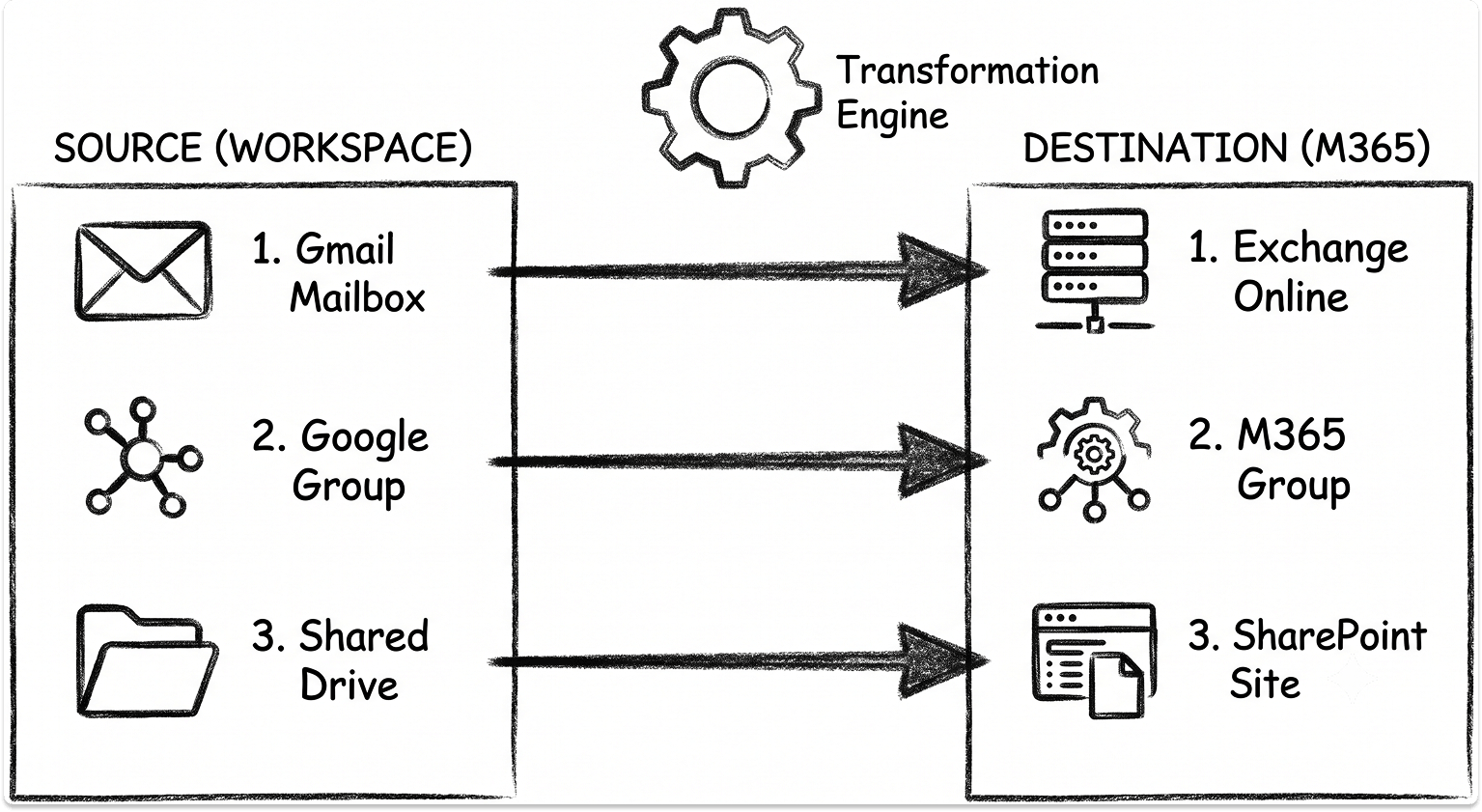
Map each source object to its destination equivalent before you begin.
Data volume feeds directly into your timeline because throughput is quota-bound, so size the corpus early. Run a full scan before migrating: it completes faster than a live pass and gives you a real estimate. Keep folder counts sane while you work, since a Google Drive folder has a documented 500,000-item limit.
Decide your identity model at this stage too. If the move to Microsoft 365 is also your moment to retire on-premises directory dependencies, plan it alongside your Active Directory to Microsoft Entra ID migration rather than as a follow-up project.
DNS, domain verification, and mail routing
Lower your MX record TTL well ahead of cutover. Microsoft's guidance is to set it to 3,600 seconds or less on every MX record before the migration starts, and Exchange Online only honors TTL values under six hours. Change this a few days early so the low value has fully propagated by the time you flip.
For an Exchange Online destination, the external DNS records follow a fixed pattern.
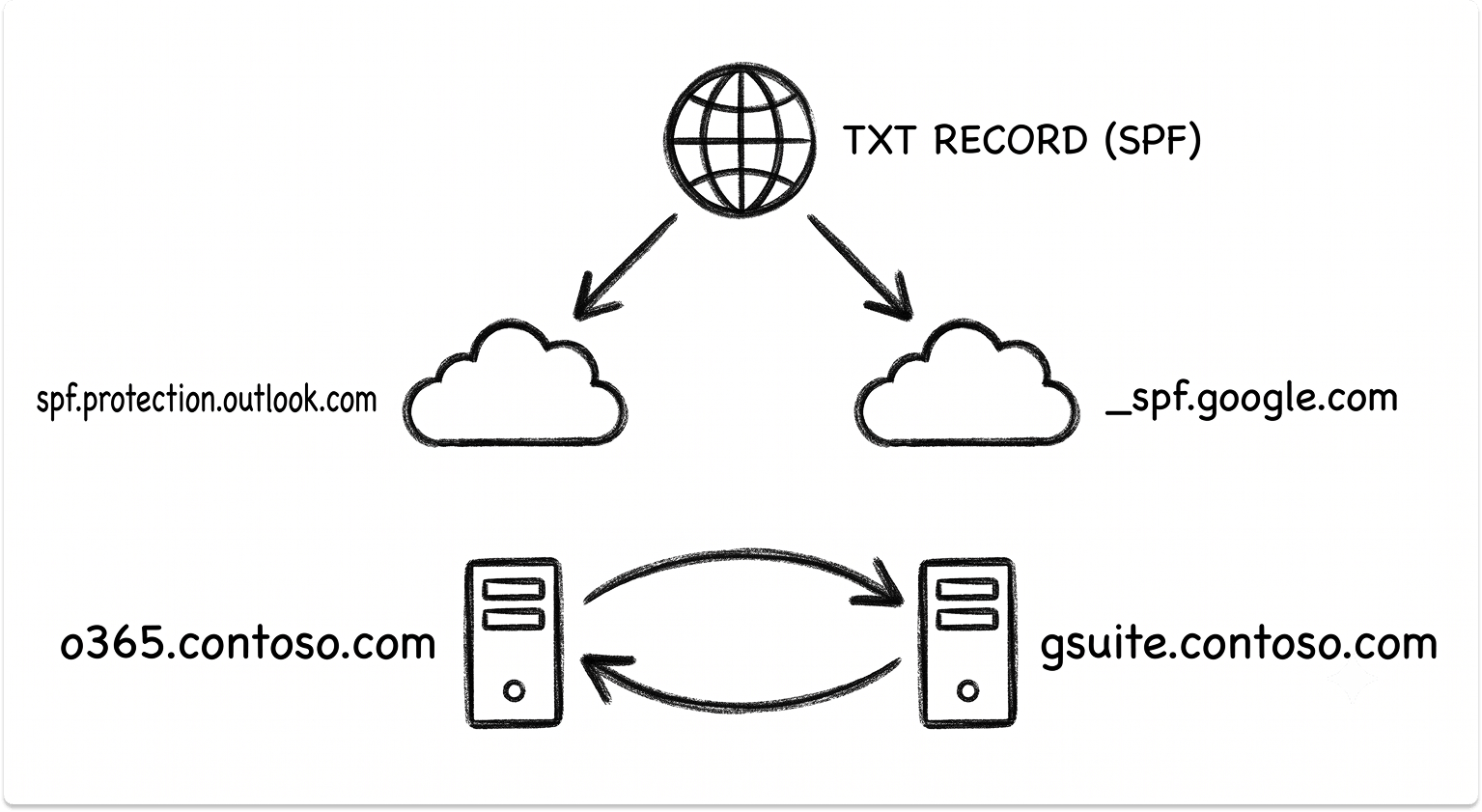
During coexistence you also need to think about routing. If both platforms send mail for the domain while you migrate in waves, your SPF record has to authorize both, so it includes spf.protection.outlook.com and _spf.google.com together until the source is decommissioned.
For mail flow across two systems, you create routing subdomains such as o365.contoso.com and gsuite.contoso.com so mail can hand off cleanly between tenants.
A subdomain of your primary domain auto-verifies, and Microsoft advises against using the built-in onmicrosoft.com domain for routing because issues there fall outside what support can help with.
Migrating mail, calendar, and contacts from Google Workspace to Microsoft 365
The native path lives in the new Exchange admin center under Migration, as a "Google Workspace (Gmail) migration" batch. The prerequisites are where migrations succeed or fail. You create a Google Cloud project, a service account with a JSON key, enable domain-wide delegation, and turn on the Gmail, Calendar, and People (Contacts) APIs. You then authorize the service account's client ID in the Google Admin console with a specific, comma-separated list of OAuth scopes.
A scope typed incorrectly does not fail the wizard. It fails the batch after it has already started, so verify these before you queue anything. Scope changes can take from 15 minutes to 24 hours to propagate.
The migration itself defaults to 20 concurrent migrations and 10 concurrent incremental syncs per endpoint, both adjustable. Know what the tool will and will not carry across.
Delegates, permissions, resource mailboxes, and tasks move through a separate cmdlet-based process, not the standard batch. Task attachments and task hierarchy do not survive, and resource mailboxes are provisioned by reading the Google admin portal because Google exposes no direct API for them.
If you only need mail and want to avoid the OAuth setup, the IMAP migration path works but is limited. It carries mail only, caps at 35 MB per message and up to 500,000 items per mailbox, and does not preserve read status, flags, or delegation. It is a fallback, useful mainly for simple estates.
Migrating mail, calendar, and contacts from Microsoft 365 to Google Workspace
Google's data import tool offers two methods. The default method uses Google's shared API quota, signs in as your Microsoft 365 Global Admin, and handles up to 1,000 Exchange Online users at a time.
The advanced method, currently in beta, uses your own dedicated quota through an Azure app you register, which you authorize with the full_access_as_app EWS scope and admin consent. Per Google's Exchange Online import documentation, the advanced method takes up to 5,000 users per batch and up to 10 batches at once.
The scope of what imports is specific. Mail, calendar, and contacts come across. The advanced method copies up to 100 GB of In-Place Archive per active user. Microsoft 365 group mailboxes become Google Groups with a limit of 100 posts per thread.
Recurring events with no end date arrive with an end date of December 31, 2099, and Teams meeting links are preserved as text rather than converted to Google Meet.
Confirm your source is supported before scheduling. Google Workspace Migrate lists supported Exchange versions as 2010 through 2019 plus Exchange Online, with EWS enabled and TLS 1.2 or higher.
Exchange 2007 is not supported. Keep the tooling transition front of mind here: the classic data ftenan service stopped accepting on-premises Exchange as a source on May 31, 2025, and after December 4, 2025 you cannot start a new migration or add users to an existing one in that classic service.
Calendar coexistence and free/busy during the migration window
If your migration runs over weeks, users on both platforms need to see each other's availability. This does not run through a Microsoft organization relationship, which only federates with other Microsoft or Exchange organizations, never with Google. It runs through Google's side.
Google Calendar Interop queries Exchange availability using a role account and an SSL certificate, pointed at the Exchange Online EWS endpoint. Only busy blocks and basic event details are exposed, and private events stay hidden.
Google recommends provisioning around 10 role accounts so resource lookups do not trip throttling. One deadline to watch: EWS-based Interop is deprecated by Microsoft as of October 1, 2026, with Microsoft Graph as the replacement path.
Migrating files from Google Drive to OneDrive and SharePoint
File data moves through Microsoft's Migration Manager with the Google Drive connector. You install the Microsoft 365 migration app from the Google Workspace Marketplace, scan and assess, review destination paths, map identities, then migrate.
Google-format files convert on the way in: Docs become Word, Sheets become Excel, Slides become PowerPoint, while the originals are left untouched.
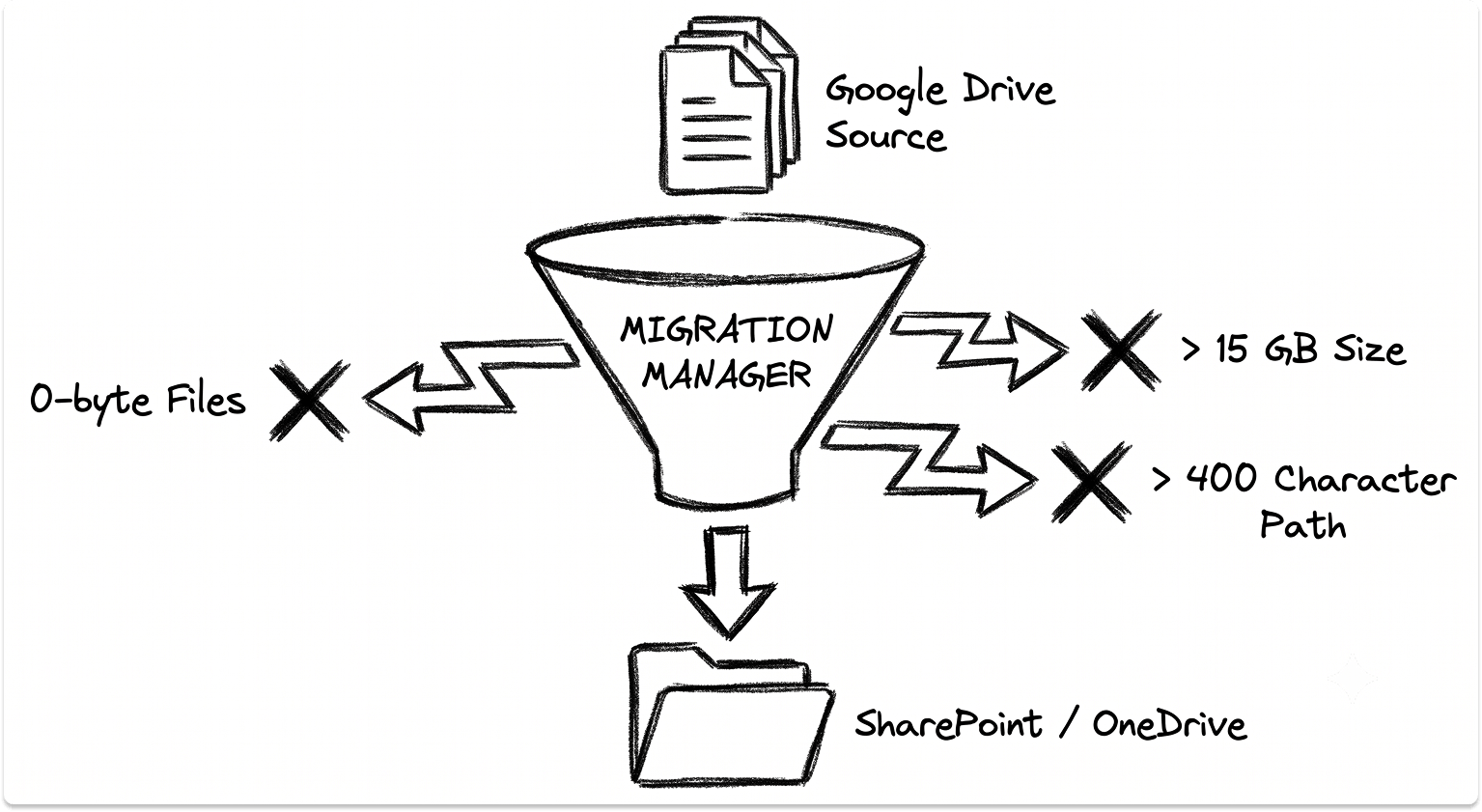
The limits here cause the most surprises. Cloud files migrate up to 15 GB each. Any destination path over 400 characters is skipped, along with restricted files, shortcut files, and zero-byte files.
Google Drive has no path-length limit, so audit your folder depth before you start and expect to flatten some structures. Google Sites and Google Maps do not migrate at all.
Permissions are the other trap. Shared drives use membership rather than folder-level access lists, so you re-establish membership on the destination SharePoint library, and your identity mapping of users and groups has to be correct before migration or people lose access. Migration Manager runs a maximum of 50 task rows at once across scanning and migrating combined.
Migrating files from OneDrive and SharePoint to Google Drive
Going the other way, Google Workspace Migrate is a server product you deploy, not a hosted tool. Its system requirements call for a platform server, two database servers running MySQL and CouchDB, and one or more node servers on Windows Server, connecting to SharePoint and OneDrive over the CSOM API on port 443.
Scale is bounded. A cluster runs a maximum of 40 worker nodes, and for very large estates you create a sharding users list, budgeting one shard user per 400,000 files.
Co-locate the servers to keep latency low and disable Windows auto-updates for the duration. Remember that this tool's Exchange Online path retires in October 2026, so validate its status if your project lands near that date.
Identity, authentication, and endpoint reconfiguration
Provision destination users in bulk and match each user's UPN to their primary SMTP address, so mail lands where addressing expects it. Turn on multi-factor authentication at or before cutover rather than after; if you are also reassessing your identity provider, a comparison of Okta, Ping, and their peers is worth doing while the environment is already in flux.
The end-user side is where a clean migration still generates tickets. Outlook profiles need recreating and a fresh cached-mode data file rebuild, which pulls the newly migrated mailbox down again per device.
Mobile devices need re-profiling onto the new platform, and if you are standardizing device management in the same move, fold it into your Intune migration plan rather than running it separately.
One gap to close deliberately: the default filtering in Microsoft 365 leaves a real opening against targeted phishing and business email compromise, so if you are landing on M365 without a dedicated layer, evaluate that alongside the move using a comparison of Proofpoint, Mimecast, and Abnormal.
Coexistence models and the cutover sequence
Pick a cutover model to match your size and risk tolerance.
Whatever the model, delta passes catch mail that arrived after the initial sync and retry failed items. Schedule the final delta as close to the MX flip as you can. Then flip the primary MX record last, and expect up to 72 hours for every external sender to recognize the change. Keep dual delivery live until your delta counts come back clean.
Throttling and throughput: the real constraint on your timeline
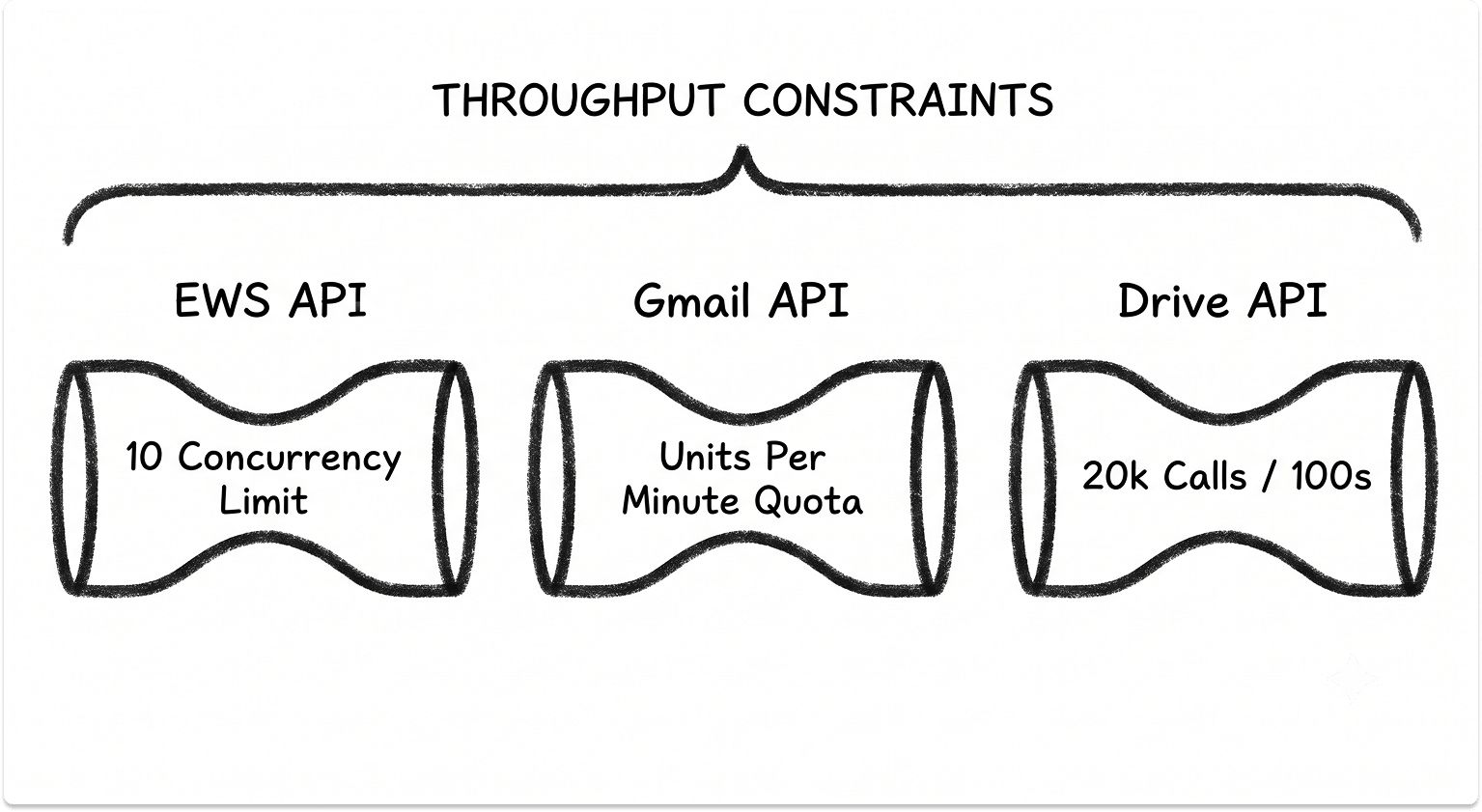
Every engine below spends most of its time waiting on quota. Plan the calendar around these limits, not around raw data size.
EWS is the one lever you control: its throttling behavior can be relaxed for a defined window through the admin center diagnostic. Gmail's per-user quota and the Drive API limits are set by Google, and SharePoint's migration throttling cannot be removed by a support ticket, which is why off-hours scheduling is the real tuning knob on that side.
Validation, rollback, and decommissioning
Validate against numbers, not impressions. Check item counts per mailbox, confirm delegation was re-applied, open recurring calendar series to confirm they did not flatten, and run end-to-end mail-flow tests in both directions while coexistence is still live.
One perception trap: Microsoft's tool flags items moved by retention or archive policies as "missing," which reads as data loss but is not. Disable those policies during migration so your counts stay clean, then re-enable them after.
For compliance, decide what happens to archives before you decommission anything: Google Vault holds and exports on one side, Exchange in-place or litigation hold on the other. Keep the source live through a retention window rather than tearing it down at cutover.
Sequence is the whole game. Lower TTL, provision and match identities, pre-stage the bulk data, run deltas, then move DNS last. Do that in order and the cutover becomes a controlled event instead of a scramble.

Ready to execute the cutover?
Comparing migration platforms and partners against your own tenant's shape, item counts, throttling headroom, and coexistence window, beats picking whoever answers a demo request first. TechnologyMatch lets you build that shortlist and compare options directly.
FAQ
How do you migrate from Google Workspace to Microsoft 365?
You migrate mail, calendar and contacts using the native Google Workspace migration batch in the Exchange admin center, which connects through a Google Cloud service account with domain-wide delegation and specific OAuth scopes. Files migrate separately through Microsoft's Migration Manager into OneDrive and SharePoint. Run both as parallel workstreams, then cut the MX record over last.
Does the native migration tool move calendars and contacts, or just email?
The native Exchange admin center tool moves mail, calendar and contacts. It does not move auto-reply settings, shared calendars, room bookings, delegation, or tasks, which are handled through a separate PowerShell process. Contacts are also capped at three email addresses each.
What does not migrate from Google Workspace to Microsoft 365?
Vacation and auto-reply settings, meeting-room bookings, shared calendars, mailbox delegation, and tasks do not migrate with the standard batch. On the file side, Google Sites and Google Maps do not migrate, and restricted files, shortcut files, zero-byte files, and any file whose destination path exceeds 400 characters are skipped.
How long does a Google Workspace to Microsoft 365 migration take?
The timeline is governed by API throttling, not by how much data you have. EWS, the Gmail API, the Drive API and SharePoint all meter requests, so the migration engine spends most of its time waiting on quota. Estimate throughput from a pilot batch, run heavy file transfers on evenings and weekends, and size your schedule around those limits.
Can you migrate from Microsoft 365 to Google Workspace?
Yes. Mail, calendar and contacts move through Google's data import tool in the Admin console, and files move through Google Workspace Migrate. Note that this direction is in transition: Google Workspace Migrate for Exchange Online will no longer be available beginning October 2026, and Microsoft's ApplicationImpersonation role that older tools relied on has already been withdrawn, so confirm the current tool before you plan.
When should you change the MX record during migration?
Lower your MX record TTL to 3,600 seconds or less a few days before cutover so the low value propagates in advance. Change the actual MX record last, immediately after the final delta pass, and allow up to 72 hours for every external sender to recognize the change while dual delivery stays live.
What is the file size limit when migrating Google Drive to OneDrive and SharePoint?
Migration Manager supports cloud files up to 15 GB each for Google Drive to Microsoft 365. The bigger practical constraint is SharePoint and OneDrive's 400-character path limit, which Google Drive does not enforce, so audit and flatten deep folder structures before you start.